
Once you've downloaded your new custom map, it will usually come in a .zip file. To start, you will need to extract the contents of this file to your desktop.
The files inside may be different depending on where you download the map, but you'll want to locate a .map file. The map I'm using as an example in this guide was in a conveniently labeled folder.
We now need a way to host this file online. Players download the map from that URL themselves – not from your Rust server – so it has to be a public link that works 24/7. Facepunch's test for whether a link will work is simple: open it in a browser, and if the download starts on its own it is a direct download link. If it loads a page you have to click something on, it is not, and the server will throw an error. Any host that clears that bar is fine – a public GitHub release works well. For this guide we'll be using Dropbox, which is free for up to 2GB of files, far more than enough for a map file.
Head over to Dropbox and sign up for the basic (free) plan. Here is a direct link. After creating your account you'll be taken to your Dropbox panel where you can upload files. It will look something like the image below.
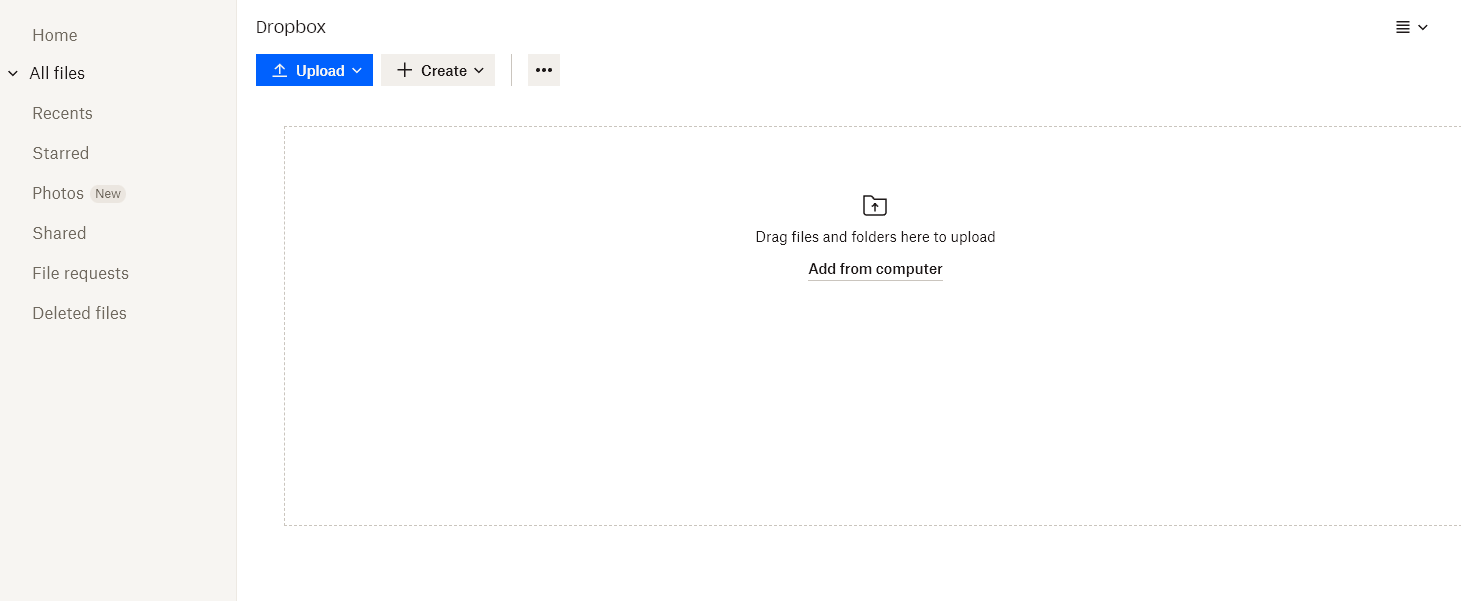
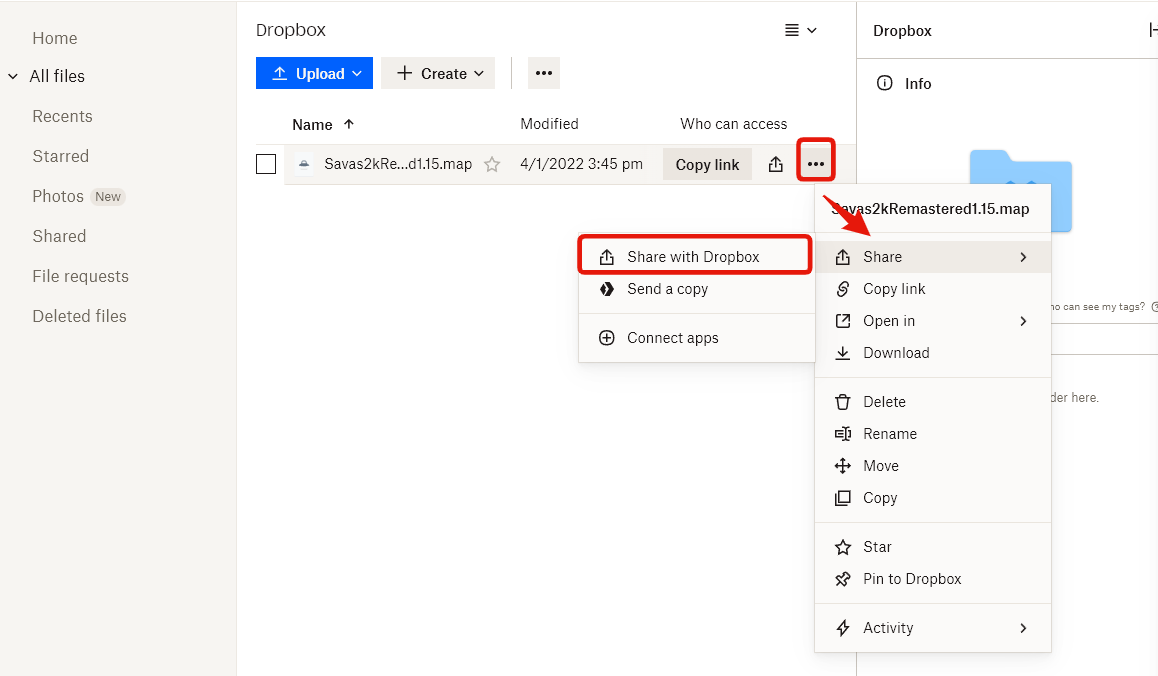
Upload the .map file that we found earlier here. Once uploaded, click the icon that looks like three dots to the right side of the file. Hover over the Share option and then click Share with Dropbox.
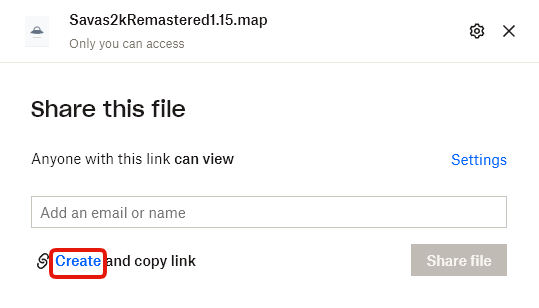
Now click the Create button to create a sharable link to your file that is automatically copied to your clipboard. Save this link, we will need it shortly. If you somehow lose the link, you can go back to the same menu and click Copy link instead of Create.
Custom maps made in Rust Edit need a modding framework loaded to work correctly. On a Rust game server rental this is a single dropdown – there is nothing to install by hand.
Open your server in the GameServerKings panel, go to the Startup tab, and find Modding Framework. Set it to oxide, or carbon if your plugins target Carbon. Leave it on vanilla only if you are running no plugins at all.

Two things to know when changing this setting:
RustDedicated_Data/Managed first.Stay on the Startup tab and find the Custom Map field. Paste your direct .map link into it. There is no config file to edit and no commandline to build – but there is one more setting to clear before you restart, covered below.

If you are hosting on Dropbox, change the dl=0 at the end of your link to dl=1 before pasting it. Without that, Dropbox serves an HTML preview page instead of the file and the server cannot read it.
Behind that field is Rust's server.levelurl convar, which Facepunch calls "the most important server parameter you need for hosting a custom map" – the server reads the URL on boot and downloads the map from it. If you are building a commandline by hand rather than using the panel, the equivalent is +server.levelurl "https://your-host/yourmap.map".
Now clear your procedural map settings. Facepunch is explicit about this step: "other startup parameters that are responsible for procedural maps like +server.worldsize or +server.seed should be removed." On the Startup tab that means emptying the World Size and Seed fields if your selected commandline exposes them, and dropping +server.worldsize and +server.seed from any hand-written commandline. Do it before the restart, not after the first failed boot.
Save the field, then Restart the server. On the next boot it downloads your map and loads it – watch the Console tab for the download line.
If your server does not boot up properly (or at all) after installing your custom map, you may have made a mistake somewhere or received a broken/outdated custom map file. The best way to check for these problems is to open the Console tab in your panel. Restart the server to try to load it again, and then be on the lookout for some of the following console errors.
When fixing any of these issues, it's a good idea to clear out any map files from your file system. If the file name is not changed, the server will continually try to load an existing map file, even if you've fixed the problem with the file. To do so, first stop the server and then open the Files tab. Navigate to the /server/rust directory and delete any existing .map files.
Note that deleting .map files is completely safe! Your map's actual saves are saved in the .sav files. As long as you only delete the files with the correct extension, you will not lose any save data on any existing maps.
Despite the name of the error log, for the most part this does not actually indicate an issue with the map itself. Generally this problem occurs when there is a problem with your map link.

In the example above, someone forgot to change the dl=0 part of the link. First, stop the server and clear your map files. This is required, because if the incorrect file still exists in the system, your server will continue to try to load that file instead of replacing it with the new, correct version.
After fixing the link in the Custom Map field on the Startup tab, turn the server back on and it should now boot as expected.
The following error is a problem with the map itself. It will look something like this:
ArgumentException: Invalid path
at System.IO.Path.GetDirectoryName (System.String path)
at Prefab..ctor (System.String name, UnityEngine.GameObject prefab, GameManager manager, PrefabAttribute+Library attribute)
......
This means that the map file was not generated on the same version as the latest game patch. If you made the map yourself, load it back up in the Rust Edit editor and re-export it with a new file name. Then upload the new file to Dropbox and insert the new download link into the commandline. If this is a purchased map, you will need to contact the author to get the new files.