---
title: "How to see who is on your Rust server"
description: "How to see who is on your Rust server: the status command, reading its output, the Steam overlay method, and WebRCON from a phone or browser."
url: "https://www.gameserverkings.com/knowledge-base/rust/how-to-see-online-users-rust/"
category: "Rust"
category_url: "https://www.gameserverkings.com/knowledge-base/rust/"
published: "2026-08-01T18:24:09.829Z"
updated: "2026-08-07T21:07:36.075Z"
source_format: "html"
site: "GameServerKings"
---

# How to see who is on your Rust server

<p>Ever wonder how to check who is on your Rust server? Maybe you are playing with someone fun and want to add them on Steam. Maybe that person is cheating and you want to report them. There are several ways to do it, and which one you use depends on whether you are in the game, in the panel, or on your phone.</p>
<h2>Quick answer</h2>
<table>
<thead><tr><th>You want to&hellip;</th><th>Use</th><th>Admin needed?</th></tr></thead>
<tbody>
<tr><td>See players on <em>any</em> server you are playing on</td><td>Steam overlay &rarr; View Players</td><td>No</td></tr>
<tr><td>See players on <em>your</em> server, in game</td><td><code>status</code> in the F1 console</td><td>Yes</td></tr>
<tr><td>See players without launching Rust</td><td><code>status</code> in the panel Console tab</td><td>No (panel access is enough)</td></tr>
<tr><td>Check from a phone or browser</td><td>WebRCON</td><td>Yes (RCON password)</td></tr>
</tbody>
</table>
<h2>How to view who is online on any server</h2>
<p>This works on every server, including ones you do not own, and needs no mods or admin rights.</p>
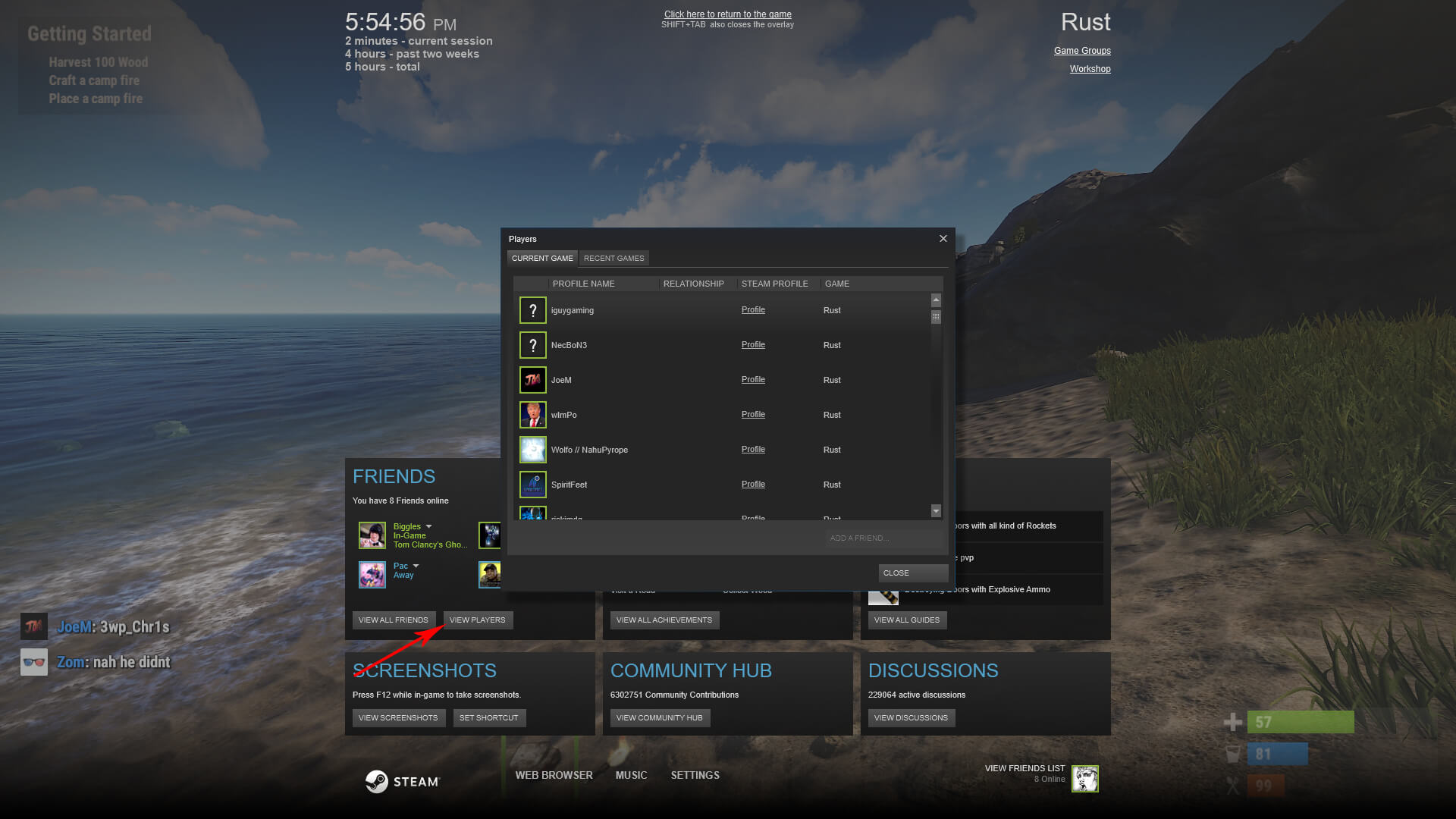
<p>While in Rust, open the Steam overlay with <strong>Shift+Tab</strong>, then click <strong>View Players</strong> under <strong>Friends</strong>.</p>
<p><img src="https://cdn.gameserverkings.com/articles/fDsgjH/How_To_See_Whos_Online.jpg" alt="Viewing the player list through the Steam overlay" width="1000" height="563" /></p>
<p>That gives you everyone currently connected, and from there you can message them, add them, or report them.</p>
<h2>How to view who is online on your own server</h2>
<p>The server-side answer is the <code>status</code> command. You can run it in three places:</p>
<ul>
<li><strong>Panel Console tab</strong> &ndash; open your server in the <a href="https://app.gameserverkings.com">GameServerKings panel</a> and type it straight into the console. This is already an authenticated RCON session, so you do not need to be admin in game.</li>
<li><strong>In game</strong> &ndash; press <strong>F1</strong> and type it. This requires an auth level, so <a href="/knowledge-base/rust/admin-commands/">make yourself owner or moderator</a> first.</li>
<li><strong>WebRCON</strong> &ndash; see below.</li>
</ul>
<pre><code class="language-text">status</code></pre>
<p>The output lists every connected player along with their SteamID, name, ping, connection time, IP address, anti-hack violation level and kick count:</p>
<pre><code class="language-text">hostname: My Rust Server
version : 2546 secure (secure mode enabled, connected to Steam3)
map     : Procedural Map
players : 2 (100 max) (0 queued) (0 joining)

id                name      ping connected addr                 violation kicks
76561198000000001 "Alice"   24   1832.41   198.51.100.24:52033  0.0       0
76561198000000002 "Bob"     57   604.19    203.0.113.88:52011   0.0       0</code></pre>
<h3>Reading the output</h3>
<table>
<thead><tr><th>Column</th><th>What it tells you</th></tr></thead>
<tbody>
<tr><td><code>id</code></td><td>The player's SteamID64. Paste it after <code>https://steamcommunity.com/profiles/</code> to open their Steam profile.</td></tr>
<tr><td><code>name</code></td><td>Their in-game display name. This can be changed, so match on the SteamID when banning.</td></tr>
<tr><td><code>ping</code></td><td>Round-trip latency in milliseconds. Consistently high ping usually means the player is far from your server region.</td></tr>
<tr><td><code>connected</code></td><td>Seconds since they joined.</td></tr>
<tr><td><code>addr</code></td><td>Their IP and port.</td></tr>
<tr><td><code>violation</code></td><td>Anti-hack violation score. A climbing number is worth investigating, though it is not proof on its own.</td></tr>
<tr><td><code>kicks</code></td><td>How many times they have been kicked this session.</td></tr>
</tbody>
</table>
<h2>Related commands</h2>
<p>Rust has a few commands in this area and they return different shapes of data. <code>players</code> and <code>users</code> both list connected players in a more compact form than <code>status</code>. The full reference lives in our <a href="/knowledge-base/rust/admin-commands/">Rust admin commands guide</a>.</p>
<h2>Checking from a phone or browser</h2>
<p>Rust ships <strong>WebRCON</strong>, a WebSocket-based remote console. It is not the legacy TCP Source RCON protocol, so tools built for other Source games will not connect. Facepunch maintain the official web client at <a href="https://facepunch.github.io/webrcon" target="_blank" rel="noopener">facepunch.github.io/webrcon</a>.</p>
<p>You need two things from your <a href="/games/rust-server-hosting/">hosted Rust game server</a>: the <strong>RCON port</strong> (28016 by default, one above your game port) and the <strong>RCON password</strong>, both on the <strong>Startup</strong> tab. Once connected you can run <code>status</code> and every other admin command exactly as you would in game.</p>
<div class="callout">
<p><strong>Keep your RCON password private.</strong> Anyone with it has full control of your server. Treat it like a root password, and change it if you ever paste it into a screenshot or a support ticket.</p>
</div>
<h2>Seeing history, not just right now</h2>
<p><code>status</code> is a snapshot &mdash; it only shows who is connected at this instant. If you need to know who was on earlier, use one of these instead:</p>
<ul>
<li>The <strong>Console</strong> tab scrollback in your panel, which logs joins and disconnects.</li>
<li>A third-party tracker such as BattleMetrics, which polls your server and keeps a searchable session history.</li>
<li><a href="/knowledge-base/rust/setting-up-automatic-schedules/">Scheduled tasks</a> if you want periodic snapshots written out automatically.</li>
</ul>
<h2>FAQ</h2>
<h3>Why does <code>status</code> do nothing when I type it?</h3>
<p>You are not admin. Running it in game needs an auth level &mdash; set <code>ownerid</code> or <code>moderatorid</code> and then <code>server.writecfg</code>, or just run the command from the panel Console tab instead, which is already authenticated.</p>
<h3>Can I see players on a server I do not own?</h3>
<p>Only through the Steam overlay method above, or a public tracker. Server commands require admin on that specific server.</p>
<h3>How do I get someone's Steam profile from the player list?</h3>
<p>Take the SteamID64 from the <code>id</code> column and open <code>https://steamcommunity.com/profiles/&lt;steamid&gt;</code>.</p>
<h2>What to read next</h2>
<ul>
<li><a href="/knowledge-base/rust/admin-commands/">Rust admin commands</a> &mdash; the full command reference, including kick, ban and mute</li>
<li><a href="/knowledge-base/rust/rust-console-commands/">Rust console commands</a> &mdash; the client-side console</li>
<li><a href="/knowledge-base/rust/oxide-permissions-101/">Rust Oxide permissions 101</a> &mdash; groups and permissions if you run plugins</li>
</ul>
