How to Set Up LuckPerms Permissions for Minecraft
Install LuckPerms on Paper, build a default-trusted-mod-admin ladder with tracks and weights, set per-world nodes and prefixes, and use the web editor.
Vanilla Minecraft gives you five operator levels and nothing in between. LuckPerms replaces that with a proper permission system: named groups, inheritance, per-world rules, temporary ranks, prefixes and a web editor. It is the de-facto standard on Paper and Spigot servers, and it is what almost every other plugin's documentation assumes you are running.
This guide covers installing it, the model it is built on, granting and denying individual permission nodes, per-world permissions, prefixes and chat formatting, the web editor, and a working default → trusted → moderator → admin ladder you can copy.
Op levels and permission nodes are two different systems
This is the single most common source of confusion, so it is worth reading the next section before you install anything.
How Permission Nodes Relate to Vanilla Op Levels
On a Bukkit-family server — Paper, Spigot, Purpur — every vanilla command is also registered as a Bukkit permission named minecraft.command.<name>. /gamemode is minecraft.command.gamemode, /ban is minecraft.command.ban, and so on.
Almost every one of those nodes is registered with a default of "op". That means the server grants it automatically to anyone in ops.json, without LuckPerms being involved at all. A handful default to true for everybody instead: minecraft.command.me, .msg, .help, .trigger and .teammsg.
Aliases do not get their own node — the server resolves them to the real command name first. /tp is therefore minecraft.command.teleport, and /xp is minecraft.command.experience. Granting minecraft.command.tp does nothing at all.
Three consequences follow, and they explain most LuckPerms support tickets:
- Opping someone overrides your entire permission setup. They inherit every op-default node instantly, no matter which LuckPerms group they are in. If you have built a careful moderator rank and then op that moderator "so it works", you have just given them
/stop. - You do not need to op anyone. Grant
minecraft.command.gamemodethrough LuckPerms and a non-op can run/gamemode. This is the correct way to hand out vanilla commands selectively. - De-opping your staff is the first real step. Until they are out of
ops.json, nothing you do in LuckPerms changes what they can run.
Three config options in plugins/LuckPerms/config.yml control the relationship:
| Option | Default | What it does |
|---|---|---|
enable-ops |
true |
Whether the vanilla op system exists at all. Set to false and every player is de-opped and /op and /deop are disabled |
auto-op |
false |
Set to true and anyone with the luckperms.autoop permission is automatically opped. Enabling it forces enable-ops to false |
commands-allow-op |
true |
Whether opped players can use LuckPerms commands. Set to false to require the luckperms.* nodes instead |
LuckPerms recommends auto-op over assigning a blanket * permission, because luckperms.autoop can be inherited, made temporary, or scoped to one world.
Fabric does not gate vanilla commands
Unlike Bukkit and Sponge, Fabric adds no permission checks to vanilla commands, so LuckPerms cannot control
/gamemodeor/tpon a Fabric server by itself. You need an extra mod that adds those checks. Individual Fabric mods may not support permissions either. Plugin permissions work normally; it is only the vanilla command set that is unprotected.
For the vanilla side of this — what levels 0 to 4 actually unlock, and how ops.json stores them — see Minecraft Op Permission Levels: 0 to 4 Explained.
Installing LuckPerms
LuckPerms needs Java 11 or higher and supports Minecraft 1.8.8 up to the current release. As of 28 September 2026 the current version is 5.5.85, released 19 September 2026.
Download the build for your platform from luckperms.net/download. Pick Bukkit for Paper, Spigot and Purpur; Fabric, Forge or NeoForge for modded servers; Velocity or Bungee for a proxy.
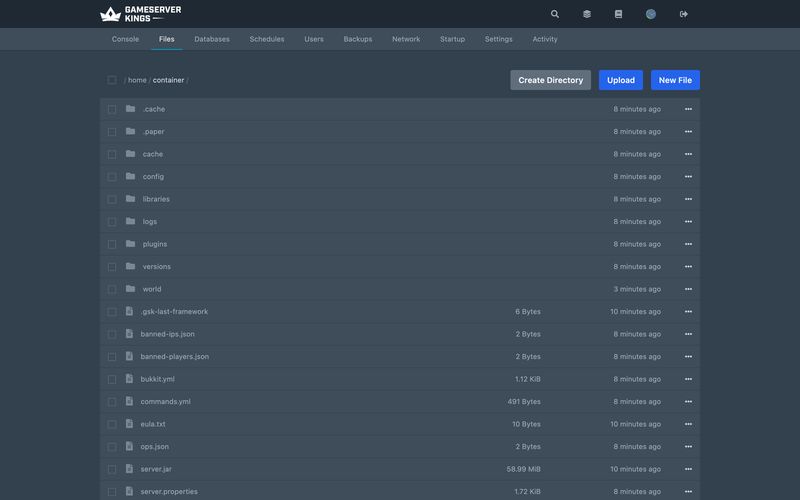
Make sure the server has started successfully at least once, so its folders exist.
Upload the
.jartoplugins/(Bukkit family) ormods/(Fabric, Forge, NeoForge, Sponge) using the File Manager or SFTP. Delete any older LuckPerms jar first.Fully restart the server — use the panel's Stop button or
stopin the console, not/reload.
On first boot LuckPerms generates plugins/LuckPerms/config.yml and an H2 database file, luckperms-h2-v2.mv.db. Watch the console for a clean startup.
LuckPerms must be your only permissions plugin
If PermissionsEx, GroupManager, bPermissions or any other permission manager is still installed, LuckPerms will not handle permission checks and nothing will work. Remove them. The one exception is a migration, where both are installed briefly and the old plugin is deleted afterwards.
LuckPerms needs internet access on first load
It downloads several libraries at runtime from
libraries.luckperms.netandrepo1.maven.org. If the server is firewalled off, install it somewhere with a connection and copy the contents of/LuckPerms/libs/across.
Give yourself access first
When LuckPerms is freshly installed, nobody has permission to use its commands — including you, even as an op, if commands-allow-op has been turned off. Open your server's Console tab and run:
lp user YourUsername permission set luckperms.* true/lp is the command; /luckperms is a full-length alias. On a BungeeCord proxy use /lpb, and on Velocity use /lpv — the aliases differ on purpose so a command typed on a backend server is not swallowed by the proxy.
Choosing a storage backend
By default LuckPerms stores everything in that local H2 file, which is fast and needs no setup. Two alternatives are worth knowing:
storage-method: yamlwrites human-readable.ymlfiles instead, which is handy if you want to edit ranks in a text editor.storage-method: mysqlis required if you run more than one server and want permissions shared. Create a database in the panel's Databases tab, fill in thedata:section of the config, and restart. A correct setup logsLoading storage provider... [MYSQL]with no errors afterwards. Every server in the network needs the identical config. See How to Create a Database.
Decide this before you build your ranks — changing it later means migrating data.
The Model: Permissions, Groups, Inheritance, Contexts
A permission is a dotted string such as essentials.home. Each one has three possible states:
true— the player has itfalse— the player is explicitly denied it, which overrides an inheritedtrue- undefined — not set at all. This almost always behaves as
false, though a small number of plugins default a node totrue, in which case you must set it tofalseexplicitly to take it away
A group is a named bundle of permissions you assign to players rather than setting nodes on each person individually. LuckPerms always has a group called default, and its name is not configurable — every player is in it whether or not you do anything. You can rename what players see with /lp group default setdisplayname Member, or create your own member group and have default inherit it.
Inheritance is how groups build on each other, and it is recursive: if admin inherits mod and mod inherits default, then admin has everything all three define.
Context is the circumstances under which a node applies — a world, a server, a game mode. Contexts are covered in their own section below.
Granting and Denying Individual Nodes
The two commands you will use most:
lp group mod permission set essentials.kick true
lp group mod permission set essentials.mute true
lp group mod permission set minecraft.command.gamemode falselp user Steve permission set essentials.fly true
lp user Steve permission unset essentials.flyThree things to keep straight:
unsetis not the same asfalse.unsetremoves the node so inheritance decides;falseis an explicit denial that beats an inheritedtrue. Usefalsewhen you want to take something away from one group that a parent grants to everyone.- The value argument is optional and defaults to
true, solp group vip permission set essentials.flygrants it. permission checktells you why a player does or does not have a node:lp user Steve permission check essentials.fly.
Temporary permissions use settemp with a duration, which is genuinely useful for trials and paid ranks:
lp user Steve parent addtemp trusted 14dFinding out what a node is called
Guessing node names is the slowest way to work. Three reliable methods:
- Read the plugin's documentation — most list every node.
- Use tab-completion in the LuckPerms command or the web editor.
- Use verbose mode, which prints permission checks as they happen:
lp verbose record Steve
lp verbose uploadHave Steve run the command in between the two lines. The second command switches recording off and returns a link to a readable report of every node that was checked and what LuckPerms answered. This is the only method that always works, including on plugins with no documentation at all.
Group Weights, and Why Conflicts Go Wrong Without Them
When a player is in two groups that disagree about a node, weight decides. Higher weight wins. Without weights the result is genuinely unpredictable — if default denies essentials.fly and admin grants it, and neither has a weight, you cannot say which the player gets.
lp group default setweight 0
lp group trusted setweight 100
lp group mod setweight 200
lp group admin setweight 300Leave gaps of 100 rather than counting up by 1, so you can slide a new rank in later without renumbering everything. Weights can be any number, including negative ones.
A Working Ladder: default → trusted → moderator → admin
This is a complete, copy-and-paste starting point. Run it from the console.
lp creategroup trusted 100
lp creategroup mod 200
lp creategroup admin 300lp group trusted parent add default
lp group mod parent add trusted
lp group admin parent add modEach rank now automatically has everything below it, so you only ever add the new permissions at each step.
lp group default permission set essentials.home true
lp group default permission set essentials.sethome true
lp group default permission set essentials.tpa true

lp group trusted permission set essentials.sethome.multiple true
lp group trusted permission set essentials.warp true
lp group trusted permission set essentials.kit true

lp group mod permission set essentials.kick true
lp group mod permission set essentials.mute true
lp group mod permission set essentials.invsee true
lp group mod permission set essentials.vanish true
lp group mod permission set minecraft.command.gamemode true
lp group mod permission set minecraft.command.teleport true

lp group admin permission set luckperms.* true
lp group admin permission set minecraft.command.ban true
lp group admin permission set minecraft.command.whitelist truelp user Steve parent add mod
lp user Steve parent remove modUse parent add when someone should hold several groups at once, and parent set when the new group should replace whatever they had.
Do not give staff
*A bare
*grants every node registered on the server, including ones from plugins you install later and have not thought about. Grantluckperms.*for LuckPerms administration and name the other nodes explicitly. If someone genuinely needs op-level access, use theluckperms.autooppermission withauto-op: trueinstead, because that can be scoped and revoked.
Tracks: Promotion and Demotion
A track is an ordered list of groups that turns rank changes into a single command. On a Minecraft prison server the rank ladder is the product, and a track is one of the two ways to build it. Tracks only exist to make promotion and demotion easy — they have no effect on inheritance.
lp createtrack staff
lp track staff append default
lp track staff append trusted
lp track staff append mod
lp track staff append adminlp user Steve promote staff
lp user Steve demote staffpromote moves the player to the next group up the track and removes the previous one; demote reverses it. A second track for donor ranks (iron → gold → diamond) is a common pattern and can coexist with the staff track. What a sold rank may include is not left to taste — Mojang permits the sale but conditions it, and Minecraft Server Monetisation quotes the guidelines in full.
Per-World and Per-Server Permissions
Contexts are how you scope a permission to a place. Append key=value to the end of any permission or parent command:
lp user Steve permission set essentials.fly true world=world_netherlp user Steve parent add builder server=lobbyLuckPerms provides five contexts out of the box:
| Context key | What it matches | Example |
|---|---|---|
server |
The server value at the top of the LuckPerms config |
server=survival |
world |
The player's current world. On a proxy, this means the backend server they are on | world=world_nether |
gamemode |
Their current game mode | gamemode=creative |
dimension-type |
The dimension they are in | dimension-type=the_nether |
proxy |
The proxy they are connected to (BungeeCord with RedisBungee only) | proxy=redisbungee1 |
For a node to apply, the player must satisfy one of each type of context set on it. Set three world contexts and one server context and the node applies in any of those three worlds on that one server. That is what makes contexts compact — one node, several places, rather than a duplicate node per world.
You can define your own static contexts in plugins/LuckPerms/contexts.json under static-contexts, which is the usual way to tag servers by type (server-type=skyblock) across a network.
The
servercontext depends on a config value you must setContexts like
server=survivalonly work if theserver:option at the top of each server's LuckPerms config is actually set to a distinct name. Leave them all at the default and every server looks identical to LuckPerms.
Prefixes, Suffixes and Chat Formatting
LuckPerms stores prefixes and suffixes as permission nodes with a priority number baked in. A prefix of [Admin] at priority 100 is stored as the node prefix.100.[Admin], and metadata pairs are stored as meta.<key>.<value>.
lp group admin meta setprefix 100 "&c[Admin] "
lp group mod meta setprefix 50 "&9[Mod] "
lp group default meta setprefix 10 "&7[Member] "Quote any value containing spaces. Priority works like group weight: when a player inherits several prefixes, the highest priority wins, and ties are broken by whichever was found closest to the player in the inheritance tree. setprefix replaces any existing prefix in the same context, while addprefix adds alongside it; removeprefix <priority> deletes by priority.
Use lp user Steve meta info to list every prefix, suffix and meta value a player has, ordered by weight — this is how you diagnose "the wrong prefix is showing".
LuckPerms does not format your chat
This surprises almost everyone. LuckPerms stores the prefix; a separate plugin has to put it in front of the player's name. On Bukkit, Spigot and Paper you also need Vault installed for that plugin to read LuckPerms data. Common choices are VaultChatFormatter for something simple, or EssentialsX Chat if Essentials is already on the server. If a prefix shows up in
lp user Steve infobut not in chat, LuckPerms has done its job and the problem is in the formatter.
The Web Editor
Typing dozens of commands gets old quickly. /lp editor opens a live session in your browser where you can click through groups, permissions, contexts and weights.
| Scope | Command |
|---|---|
| All groups plus online and non-default users | /lp editor |
| Groups only | /lp editor groups |
| Online and non-default users | /lp editor users |
| All groups plus online users only | /lp editor online |
| One group | /lp group admin editor |
| One user | /lp user Steve editor |
Run the command, follow the link, make your changes, then press Ctrl + S. The editor generates an apply command — click it to copy, then paste it into the console or chat. Nothing changes on the server until you run that command, which makes the editor safe to experiment in.
Some settings are only reachable as raw nodes in the editor: group.<parent> sets a parent, weight.<number> sets group weight, displayname.<name> sets the display name, and prefix.<priority>.<prefix> / suffix.<priority>.<suffix> / meta.<key>.<value> handle metadata. Note that the editor's context fields take only one world and one server per permission — to apply the same node in two worlds from the editor, add it twice. The underlying data model is not limited this way; see the contexts section above.
Common Issues
- Nothing works after installing — another permissions plugin is still present, or you have not given yourself
luckperms.*from the console yet. - A staff member can do things their group does not allow — they are still an operator. Check
ops.json,/deopthem, and use LuckPerms groups instead. - A permission is granted but the command still fails — run
lp user <name> permission check <node>to see what LuckPerms actually returns, thenlp verbose record <name>to see which node the plugin is really checking. It is often not the one you guessed. - Prefix set but not showing in chat — you need Vault plus a chat formatting plugin. Confirm with
lp user <name> infothat the prefix exists first. - The wrong prefix is showing — two prefixes share a priority, or several are set to
0. Runlp user <name> meta infoand re-set the one that should win at a higher priority. - Permissions do not match across a network — every server must use the same MySQL database, with identical credentials. Run
/lp infoon each one and compare the reported storage method. - Changes made in the database do not appear in game — run
/lp sync, or/lp networksyncto push the refresh to every connected server.
What to Read Next
- Minecraft Op Permission Levels: 0 to 4 Explained — the vanilla op levels LuckPerms is replacing
- How to Make a Minecraft SMP Server for Friends — why a small friends server can often skip LuckPerms and stay on op levels
- Minecraft Server Commands — the commands behind the
minecraft.command.*nodes - How to install plugins for Minecraft Java Edition — installing the plugins whose nodes you are granting
- How to Create a Database — MySQL setup for multi-server permission syncing
Made with 💜 by GameServerKings

Need a Minecraft server?
Deploy an instantly-provisioned Minecraft server on high-clock hardware — DDoS protected, no contracts, cancel anytime.
From $4.80 /month