How to Upload Your Existing World to Your Valheim Server
Move your local Valheim world to a dedicated server: find the .db and .fwl pair in worlds_local, upload both files, and set the World Name to match.
Yes — the world you started in singleplayer or hosted co-op moves straight onto a dedicated server. Since Valheim 1.0 a world is a folder named after the world, and the server loads whichever folder matches its World Name setting. You need that folder from your PC, about five minutes, and a server you can stop and start.
Everything below happens in two tabs of your Valheim game server panel: the File Manager for the upload and the Startup tab for the world name. Your characters are not part of the move — Valheim stores them on each player's own machine, so everyone keeps their skills and inventory automatically.
Where Valheim Stores Local Worlds
Looking for the paths rather than the move?
Valheim Save Location and the 1.0 World Folder Format is the full reference — every platform path, what each file inside a world folder does, and how pre-1.0 worlds convert. This page is the migration walkthrough.
| Platform | Path |
|---|---|
| Windows (Steam) | %USERPROFILE%\AppData\LocalLow\IronGate\Valheim\worlds_local\ |
| Linux | ~/.config/unity3d/IronGate/Valheim/worlds_local/ |
Valheim has had a native macOS build since June 2024, on both Steam and the Mac App Store, but the two store it differently — the Steam build under ~/Library/Application Support/, the sandboxed App Store build under ~/Library/Containers/. Iron Gate document the Windows and Linux paths and not the Mac one, and the guides that fill the gap disagree with each other, so use Finder's Go → Go to Folder… and search for worlds_local rather than trusting a path you were given.
Worlds created before 20 June 2022 (patch 0.209.8) may still sit in the older worlds\ folder next to worlds_local\. That patch moved local saves into worlds_local and characters_local so they would stop syncing to Steam Cloud, and a legacy world migrates across the first time you load and save it — so if a world is still in worlds\, open it once in game and it will move itself. Xbox and Microsoft Store (Game Pass) saves are not loose files at all — they live in an opaque WGS container of GUID-named blobs under %LocalAppData%\Packages\, so there is no world folder to copy by hand.
Playing through Steam Cloud?
If Steam Cloud sync is on, your newest world may exist only in
Steam\userdata\<your id>\892970\remoterather thanworlds_local. Select the world in the world list and use Move to Local first, then copy it out ofworlds_local. (The Manage Saves screen is the backup restore-and-delete menu — a different thing.)
Step 1: Find Your World's Folder
Open worlds_local and find the folder named after your world — for a world called Midgard, that is worlds_local/Midgard/.
Since Valheim 1.0 the world lives inside that folder as several files rather than as a single .db/.fwl pair. Inspected on a freshly generated 1.0 server, the folder contains:
| File | What it is |
|---|---|
_main.N.fwl2 |
The metadata — seed, world name, generator version. Replaces the old .fwl |
_main.N.db2 |
The world data. Replaces the old .db |
_main.N.chunks |
The chunk index |
NN_NN__N_N.chunk |
The world data itself, split into chunks. There will be many on a played-in world |
_main.N.ok |
A marker Valheim writes last, which is how a save survives being interrupted |
N is a generation counter that increments each time the world saves, so the exact numbers on your world will differ.
Move the whole folder, never files out of it
The files reference each other, and the
.okmarker is what tells Valheim the save is complete. Copying a subset produces a world that either refuses to load or loads as an older state. Treat the folder as the unit.
Still have a
.dband.fwlpair?That is a pre-1.0 world and it still works. Copy the pair across as-is and Valheim converts it to a folder the first time it loads it, taking a backup before it does. You do not need to convert anything by hand.
Step 2: Stop the Server
Click Stop on the Console tab and wait for the process to exit. Uploading world files into a running server risks the server's own save cycle overwriting them mid-copy.

Step 3: Upload the World Folder
In the File Manager, open .config/unity3d/IronGate/Valheim/worlds_local/. Valheim uses the same default path on your server as it does on a stock Linux install — our startup does not pass -savedir — so worlds_local/ sits inside .config/unity3d/IronGate/Valheim/, alongside adminlist.txt, and not in the server root.
Upload the whole world folder. For worlds over a few hundred MB, SFTP is faster and resumes interrupted transfers, and it handles a directory of many small chunk files better than a browser upload does; the target folder is the same.
Do not rename the folder or anything inside it. The folder name is the world's identity, and the server matches it exactly — on Linux, capitalisation included.
Step 4: Set the World Name
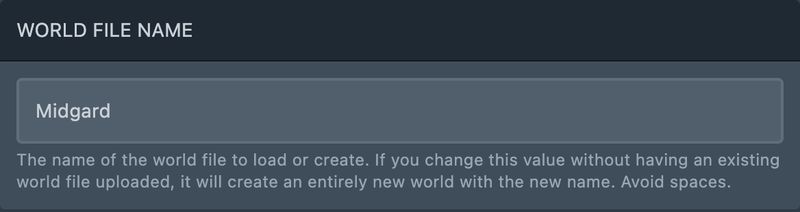
Open the Startup tab and find World File Name. Set it to your world's base name — Midgard, not Midgard.db. This is Valheim's -world launch argument: the server loads the matching pair from worlds_local, and if nothing matches it generates a brand-new world under that name, which is the failure you are trying to avoid. The full Startup field reference covers the rest.
Step 5: Start and Verify
Hit Start and watch the Console for the server to come up with your world's name in the boot output. Then join in-game: the real check is the world itself — your spawn point, a landmark you built, the day counter on the sleep screen.
Take a snapshot through the Backups tab once the world is confirmed live, so the freshly migrated state is the thing you can roll back to. See How to create a backup.
Common Issues
- The server generated a new empty world: The World Name does not exactly match the uploaded folder's name, or the folder is incomplete. Check spelling and capitalisation against the File Manager listing.
- My newest progress is missing: Steam Cloud was holding a newer copy than
worlds_local. Use Move to Local on the world in game, then re-upload the folder. - World loads but my character is level 1: Characters never live on the server. Each player's character travels with their own client (
characters_localon their PC) — the player who "lost" a character is signed into a different machine or Steam account. - The world was fine, then rolled back: Valheim keeps previous save generations and falls back to one when the current save will not read, so a bad shutdown can surface an older state. Restore your own latest snapshot from the Backups tab rather than re-uploading over it.
- Server and client versions differ: A world saved on a newer game build will not load on an older server. Keep automatic updates on, and make sure your own game is not on a beta branch.
The save format changed at 1.0, and this is what changed
The rewritten save system that sat on the public test branch through 2026 shipped with Valheim 1.0 on 9 September 2026. Iron Gate's 1.0 patch notes describe it as a "New save system: Splits world data across chunks to reduce how much data is serialized and written to improve performance, and is designed to be resilient against mid-write failures", and the earlier 0.221.13 notes spell out the mechanism: "Worlds will no longer be saved with a .db and a .fwl file, but will instead be saved and stored in separate folders, with the .db file broken down into smaller pieces."
In practice: only the chunks that changed get rewritten on each save, backups get folders of their own, and the
_main.N.okmarker is what makes an interrupted save recoverable. Pre-1.0 worlds are converted on first load, after an automatic backup. If you are following an older guide that tells you to copy a.dband a.fwl, it predates 1.0.
What to Read Next
- Valheim Server Settings and Launch Arguments for the rest of the Startup tab, including the wipe procedure
- Managing your Valheim server for scheduled restarts and the backup routine that protects the world you just moved
- How to install mods for your Valheim server if your co-op group played modded — the server needs the same BepInEx setup
- Best Valheim Server Mods That Work After 1.0 to check whether those mods have been rebuilt since the update before you bring the world across
Made with 💜 by GameServerKings

Need a Valheim server?
Deploy an instantly-provisioned Valheim server on high-clock hardware — DDoS protected, no contracts, cancel anytime.
From $9.00 /month