How to Make a Modded Minecraft Server (CurseForge, Modrinth, FTB)
Make a modded Minecraft server from a modpack: server packs vs client packs, loader and Java, RAM, and the panel steps for CurseForge, Modrinth and FTB.
The quickest way to make a modded Minecraft server is to install a modpack: a curated, version-locked set of mods that you and your players download as one unit. It is the point where a Minecraft server stops being a hobby and starts needing real hardware — a hundred-mod pack is a different machine from a vanilla world. It is also the install that goes wrong most often, and nearly every failure traces back to the same misunderstanding: the pack you install on your PC and the pack you install on the server are not the same download.
This guide covers server-side modpack installs from CurseForge, Modrinth and FTB, matching the mod loader and Java version to the pack, sizing memory so the pack does not crash, getting your players onto the identical pack version, and updating a pack without destroying the world.
For installing individual mods by hand, and for the Forge / NeoForge / Fabric decision itself, see How to install mods for Minecraft Java Edition. For step-by-step guides to the packs people ask about most, see the pack guides at the end.
Modpacks need a Forge, NeoForge or Fabric server
A modpack cannot run on Paper, Spigot or Purpur. Set your server type to the loader the pack asks for, in the Startup tab. If you want server-side features without asking players to install anything, you want Plugins instead.
The Client Pack and the Server Pack Are Different Downloads
This is the one idea that prevents most modpack support tickets.
A modpack is published primarily as a client pack: the thing your launcher installs so you can play. It contains client-side mods (shaders, minimaps, UI tweaks), a manifest.json or modrinth.index.json describing what to fetch, and a folder of config overrides. Handing that archive to a server is the single most common failed install — it either refuses to boot or boots without half the pack.
What a server needs is the server pack: the same mod list with the client-only mods stripped out and server configs in place. How you get it depends on the platform:
| Platform | How the server side is published |
|---|---|
| CurseForge | A separate server pack attached to a specific pack file as an Additional File. Not every pack publishes one |
| Modrinth | Built into the .mrpack. The format carries a server-overrides folder and per-file environment flags, so one file serves both sides |
| FTB | A per-pack Server Installer binary that builds the server directory for you |
Some modpacks have no server at all
A pack can be client-only by design, and the biggest ones often are. The most-downloaded modpack on Modrinth, Fabulously Optimized, is marked
client: required/server: unsupported— it is a performance and visuals bundle with nothing to install server-side. Check the pack's own page before you buy capacity for it.
Read the Pack's Requirements Before You Touch the Panel
Every pack declares four things. Write all four down before you start, because three of them are settings you will enter in the Startup tab and the fourth decides whether the server survives its first evening.
Minecraft version — for example
1.20.1or1.21.1.Mod loader and its version — Forge, NeoForge or Fabric, at a specific build.
Java version — dictated by the Minecraft version, not by the pack.
Recommended RAM — the pack author's figure, which is a floor rather than a target.
Java is the one people skip, and it is the one that produces the most confusing failure. The runtime is fixed by the Minecraft version the pack targets:
| Pack's Minecraft version | Java version required |
|---|---|
| 26.1 and newer | Java 25 |
| 1.20.5 – 1.21.11 | Java 21 |
| 1.18 – 1.20.4 | Java 17 |
| 1.17 – 1.17.1 | Java 16 |
| 1.16.5 and older | Java 8 |
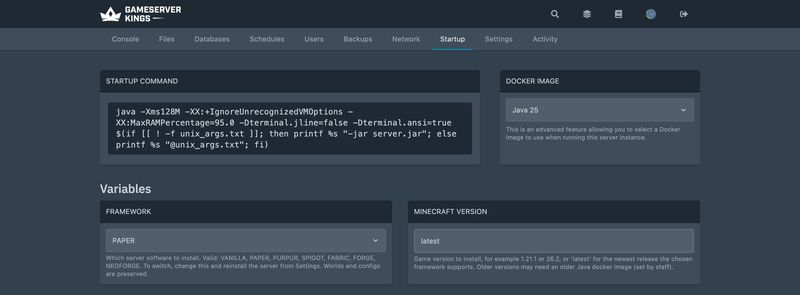
Those are Mojang's own numbers — each release's metadata names the runtime it ships with — and the official wiki states plainly that "Minecraft ≥ 26.1 and above requires Java 25." NeoForge asks for the same Java 25 JDK, so a 26.x modded server will not start on anything older. Equally, a pack built for 1.12.2 wants Java 8 and throws class-version errors on a modern JVM. On our servers that is the Docker Image selector in the Startup tab (Java 8 through Java 25). Changing it needs a restart, not a reinstall.
Modpacks lag the current Minecraft release, deliberately
Minecraft's current release is 26.3, but the modpack ecosystem is a long way behind it. In September 2026 Modrinth lists about 7,300 modpacks for 1.20.1 and 4,900 for 1.21.1, against about 1,300 for 26.2 and 250 for 26.3, and FTB's most-installed packs still sit on 1.12.2 through 1.20.1. Picking "the newest version" in the panel is the wrong instinct here: pick the version the pack targets, and nothing else.
Matching the loader version
The loader version has to match too, and each project numbers itself differently:
- Forge publishes a latest and a recommended build per Minecraft version; for 26.2 those are
65.1.3and65.1.0. Forge is still actively shipping builds for current Minecraft, whatever you may have read. Its numbering restarts with each Minecraft version, so43.5.0(for 1.19.2) and65.1.0(for 26.2) are both current Forge. - NeoForge encodes the Minecraft version into its own. The rule from its documentation is that the leading components identify the Minecraft version and the last is the NeoForge release, so
26.2.0.64is the 65th NeoForge build for Minecraft 26.2, and21.11.xwas for 1.21.11. If you can read the Minecraft version off the front, you can tell at a glance whether a pack's loader matches its jar. - Fabric versions its loader independently of Minecraft —
0.19.5is current and works across many game versions — so a Fabric pack pins the Minecraft version and the loader version separately.
What the panel installs for you
On a GameServerKings Minecraft server, the loader is installed by the server's install script from three Startup settings: Framework (FABRIC, FORGE or NEOFORGE for a modpack), Minecraft Version (the pack's version, for example 1.21.1, not latest) and the Docker Image for Java. Change them, then run Reinstall from the Settings tab to fetch the loader.
The script picks the loader build itself:
| Framework | Build it installs for your Minecraft Version |
|---|---|
FORGE |
Forge's recommended build, or latest if there is no recommended one |
NEOFORGE |
The newest non-beta NeoForge build for that Minecraft version |
FABRIC |
The newest stable Fabric loader |
The Build Number variable doesn't apply to these three frameworks (it is used by Paper and Purpur). Packs usually start on a newer loader build for the same Minecraft version. If a pack refuses to, the console names the build it wants. Contact support with that build number and we'll help you get the exact build installed.
Moving an existing Paper world to a modded framework
New servers start on Paper. If a world created under Paper fails its first modded start with Missing data pack paper, set Extra Flags to
--safeMode, start once, stop, and clear Extra Flags again. The install log prints the same instruction when it detects the switch.
Where Modpack Files Live on a Panel-Managed Server
On a hosted Minecraft server everything happens in two places: the Files tab and the Startup tab.
mods/— every mod jar in the pack. This is the bulk of the download.config/— the pack's tuned configuration. Skipping this folder is how you end up with a pack that "runs" but plays nothing like the pack.kubejs/,scripts/,defaultconfigs/— packs that script their own recipes and progression keep them here. Copy whatever the archive contains; if you drop a scripts folder the pack's questline and recipes break.run.sh/run.bat— the pack's own start script. On a panel you normally do not use it (see the warning below).world/— your save. Never overwrite this from a pack archive.
Uploading is the fiddly part, because a server pack is thousands of small files:
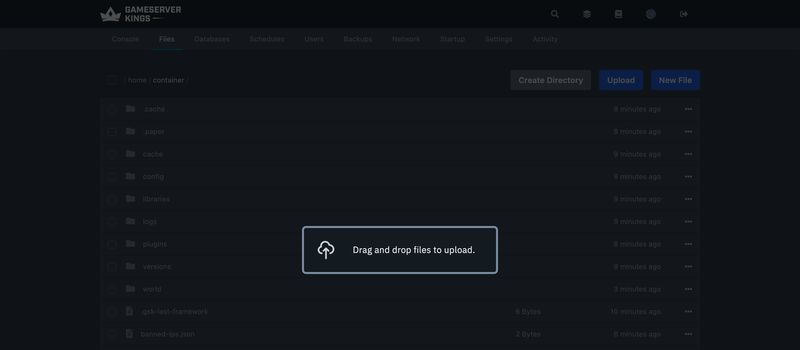
Upload the pack archive as a single zip through the Files tab, then use Unarchive to unpack it in place. The panel's uploader takes files only — it will tell you "Folder uploads are not supported" — so unpacking server-side is both faster and the only way to preserve the folder structure. Most nodes cap a browser upload at 100 MB, and big server packs run from several hundred MB to over a gigabyte, so large packs go over SFTP.
For anything large or awkward, connect over SFTP on port 2022 with your panel password and drag the folders straight across. Full walkthrough in How to upload files via SFTP.
Set Framework, Minecraft Version and the Docker Image in the Startup tab to match the pack, run Reinstall from Settings if you changed the framework or version, then start the server and watch the Console.
The pack's
run.shdoes not control your memoryModpack server packs ship start scripts with a heap size baked in — the example line in FTB's memory guide carries
-Xmx8192Mand-Xms6144M. On managed hosting that script is not what launches your server; the panel's own startup command is, and your heap comes from the plan you bought. FTB's own documentation makes the same point in its opening caution: editingrun.shis how you change memory on a machine you control, and on a hosted server you may not be able to change your allocation that way at all. Here there is nothing to change on either side: your server launches with-XX:MaxRAMPercentage=95.0, which caps the heap at 95% of the RAM your plan provides. The Startup tab has no memory field, so the figure you settle on below is a plan decision, not a setting.
Take a backup before every pack install or update
A pack install rewrites
mods/andconfig/wholesale. Reinstall in the Settings tab removes only the loader's own files (the server jar,libraries/for Forge and NeoForge,run.sh,unix_args.txt,user_jvm_args.txt) and keeps worlds,mods/,config/andserver.properties, but a bad pack upload can still overwrite what you had. Snapshot first from the Backups tab — see How to create a backup.
Installing a CurseForge Modpack
CurseForge calls it a server pack. Its Server Packs Tutorial — a post on the CurseForge blog, not a support-centre article — defines one as "a specially prepared version of your modpack that allows it to be run on a multiplayer server." It is attached to a specific pack file rather than to the pack as a whole, which is why the download is easy to miss.
The CurseForge app cannot download server packs
CurseForge's support documentation says of Additional Files — the slot server packs are uploaded into — that "Currently they are not supported in our client." The server pack has to come from the website. If you have only ever used the desktop app, this is the step that was missing.
Open the modpack's project page on curseforge.com and go to the Files tab.
Click the exact pack version you intend to run — not just the newest one, the one your players will have.
On that file's page, look for Additional Files. The server pack lives there.
Upload the zip to your server, unpack it with Unarchive, and check what you got. A server pack typically contains
mods,configand — where the pack scripts its own content —kubejs, plus optional extras the author may include such asrun.bat,run.sh,server.propertiesand a 64×64server-icon.png.Set Framework and Minecraft Version in the Startup tab to the values the pack file declares, and reinstall.
Start, and read the console through to the world-load line.
If a pack publishes no server pack at all, that is a decision by its author — either the pack is client-only, or the author expects you to build the server side by hand from the client manifest. Check the pack's description and its Discord before assuming it is an oversight.
Versions must match on both sides
The same CurseForge tutorial says it in one line: "The pack and server should match pack versions." Server pack
0.31goes with client pack0.31. Mixing them produces a mod-list mismatch that reads, unhelpfully, as a generic connection failure.
Installing a Modrinth Modpack
Modrinth solved the two-downloads problem in the file format itself, which makes it the cleanest of the three to run on a server.
A .mrpack file is a zip carrying an index at modrinth.index.json. Two things in that index matter to you:
- A
dependenciesblock naming the exact versions the pack needs. The keys currently defined areminecraft,forge,neoforge,fabric-loaderandquilt-loader— so the file itself tells you which Framework and Minecraft Version to select in the Startup tab, and which loader build the pack was made with. No guessing. - Per-file environment flags. Each mod carries
"env": { "client": …, "server": … }with values ofrequired,optionalorunsupported. That is how a Modrinth install knows to skip a client-only mod on a server.
The format also has an overrides folder plus optional server-overrides and client-overrides folders. Server overrides are applied on top of the shared ones, which per Modrinth's specification exists "to eliminate the need for server packs". One file, both sides.
To install one:
Download the
.mrpackfrom the pack's page on modrinth.com.Open
modrinth.index.jsonand note thedependencies— that is your Minecraft version and loader version.Have the pack unpacked into your server directory. For a server, Modrinth's help centre points you at what it explicitly calls "unofficial third-party tools" —
mrpack-installis the one it names, and it reads the index and fetches the mods for you. It is community software rather than Modrinth's own, so judge it on that basis. Our panel has no modpack variable and doesn't run arbitrary programs, so run the tool on your own computer and upload the folder it produces (zipped) to the server.Set the loader and Minecraft version in Startup to the values from step 2, and start.
Renaming
.mrpackto.zipshows you the contentsIt is an ordinary zip archive. If you need to inspect a pack before installing it — to check the mod list, or to read the config overrides — renaming the extension lets any unzip tool open it.
Installing an FTB Modpack
Feed the Beast does not ship a server zip. It ships a Server Installer: a small per-pack binary that downloads the correct mods, configs and Java runtime and assembles the server directory itself.
Go to the pack's page on feed-the-beast.com and open its Server Files. Choose your operating system and the pack version.
Download the installer — or copy the
curlcommand FTB gives you for the terminal, which is the easier route onto a remote server.On Linux, make it executable and run it:
chmod +x serverinstall_{id}_{versionid}
./serverinstall_{id}_{versionid}
Answer the prompts. The installer produces a
run.sh(orrun.baton Windows) for the pack.
Do not rename the FTB installer
FTB's documentation is emphatic: "Do not rename this file! The server installer uses the file name to know which pack to install!" The
{id}and{versionid}in the filename are what tell it what to build, and FTB adds that if you do rename it, "You will be asked for the pack ID and version ID." Keeping the name is simply the path of least resistance. One wrinkle: FTB's guide writes the command asserverinstaller_…, but the file the download actually arrives as isserverinstall_<id>_<versionid>— run whatever name you were given.
Two FTB behaviours are worth knowing on managed hosting. First, on Java: "the server installer will download the correct version of Java for you" — useful on a bare box, redundant on a panel where the runtime comes from the server image, and occasionally the source of a confusing duplicate-Java situation. Second, FTB's pack metadata declares its Minecraft version, loader version and Java version per pack version, so if you are ever unsure what a pack wants, FTB has already published the answer.
Our panel doesn't let you run an arbitrary binary on the server, so run the FTB installer on your own computer, then upload the resulting mods/ and config/ folders (plus kubejs/ or defaultconfigs/ if the installer created them) as a zip and unarchive them server-side. Set Framework and Minecraft Version to what the installer used; it doesn't matter that its own run.sh and Java download are left behind.
How Much Memory a Modpack Server Needs
Under-allocated memory is the single most common cause of "my modded server keeps crashing". A pack with three hundred mods does not fail loudly at startup — it boots, runs, and then dies an hour later when a player walks into an unloaded chunk and the heap runs out.
Two things drive the requirement, and neither is player count:
- Mod count, because every mod registers blocks, items, recipes and tags at load, and that lives in the heap for the server's whole life.
- Explored world size, because chunk data for a modded world is far heavier than vanilla.
Useful anchors, all from primary sources:
- Paper's own tuning guidance recommends "at least 6-10GB, no matter how few players" for a plugin server. A modpack server starts above that, not below it.
- FTB's memory guide shows an example server script line carrying
-Xmx8192M— 8 GB. It is an example, not a guaranteed default, and the number to trust is the pack's own: FTB publishes a per-pack figure in its metadata, and it is often lower. FTB StoneBlock 3, for instance, declares a minimum of 4096 MB and a recommended 6144 MB, so 8 GB is already above what that pack asks for. - Vanilla, by contrast, is happy on very little: the official wiki reckons
-Xmx2Gis "more than enough for a home server with 5 players on default simulation distance" — and adds, in the same breath, "but do scale it up by your actual settings". That is where most "how much RAM does Minecraft need" advice comes from, and it does not transfer to modded at all.
Read across those: a light Fabric performance pack behaves close to vanilla, a mid-size themed pack wants something in the 6–8 GB range FTB's own figures point at, and a large kitchen-sink pack with automation mods wants more again. The pack's own page is the best guide, because the author has actually run it — treat their recommended figure as a floor. Because your heap is 95% of the plan's RAM, a plan sized at roughly the pack's recommended figure gives you that heap with the JVM's own off-heap overhead covered by the remaining margin.
More heap is not automatically better
Past the point where the pack actually uses it, extra heap makes garbage-collection pauses longer rather than shorter. Paper's guidance puts it bluntly: "more memory does not mean better performance above a certain point. Eventually you will hit a point of diminishing returns. Going out and getting 32GB of RAM for a server will only waste your money with minimal returns." Size to the pack, not to the largest number available.
Paper recommends setting -Xms equal to -Xmx wherever you control both, on the reasoning that "if Xms is lower than Xmx you have unused memory! Unused memory is wasted memory." That is not a choice you make on our servers — -Xms is fixed at 128 MB and the maximum comes from the plan, so the JVM grows into the allocation over the first minutes of uptime instead of claiming it at boot.
If a pack genuinely needs more than a shared plan provides, that is a hardware conversation rather than a config one — a dedicated server gives the pack the whole machine. Heap sizing in general — what -Xms and -Xmx actually do, Aikar's flags, and the garbage-collector settings behind them — is covered in Minecraft Server RAM and JVM Flags.
Getting Your Players Onto the Exact Same Pack
A modded server and its players run the same mod list or they do not connect. Version drift between players is the second-biggest source of "I can't join" reports after the client/server pack mix-up.
- Publish the pack name, the platform and the exact version. "All the Mods 10, CurseForge, 0.31" is joinable information. "ATM10" is not — the pack has dozens of releases and they are not interchangeable. All the Mods 10 server setup walks through installing that pack's server files.
- Send a link, never a mod list. Players installing a pack by hand from a list will get a different set every time. Link the pack page and let the launcher do it.
- Tell them which launcher. CurseForge packs install through the CurseForge app or Prism;
.mrpackfiles install through the Modrinth app or Prism; FTB packs install through the FTB app. Any of these will do the version pinning for the player. - Lock the version when you announce it. Launchers offer the newest release by default, so if your server is on
0.31and the pack has shipped0.32, say so explicitly or half your players will arrive on the wrong one. - Announce updates ahead of time. The moment you update the server, everyone on the old version is locked out until they update too.
Put the pack version in the MOTD
The
motdline inserver.propertiesshows in the multiplayer list before anyone connects, which makes it the cheapest possible place to publish the version your server is running. See Getting started with your Minecraft server for editingserver.properties.
Updating a Pack Without Destroying the World
Pack updates change mods, and mods own world data. Done carelessly, an update deletes the blocks, items and dimensions the removed mods were responsible for. Done in the right order, it is routine.
Back up first, and verify the backup exists. From the Backups tab. This is the step that makes everything below reversible.
Read the pack's changelog. Authors flag breaking changes, removed mods and "new world required" releases. If it says a new world is required, believe it.
Stop the server. Never swap mods on a running server.
Replace
mods/andconfig/, keepworld/. Delete the oldmodsfolder rather than unpacking on top of it — leftover jars from the previous version are a classic duplicate-mod crash.configis more nuanced: replacing it gets you the pack's intended settings but discards your customisations, so keep a copy of anything you tuned.Reinstall from the Settings tab if the pack moved to a new loader build or Minecraft version, and check whether the Java version changed with it.
Start, and read the console properly. A modded server logs every mod it loads. Errors during load name the offending mod, and a
Missing or unsupported mandatory dependenciesblock lists exactly what it wanted.Update the players last, once the server is confirmed up on the new version.
Removing a mod removes its content from the world
If the update drops a mod, everything that mod added disappears from existing chunks: its blocks vanish, its items are stripped from inventories, and its dimensions become unreachable. That is expected behaviour rather than corruption, but it is permanent, and it is why step 1 is a backup. On a big pack jump, a fresh world is often the honest answer.
Common Issues
- The pack boots but no mods load. You installed the client pack. Get the server pack — on CurseForge, from Additional Files on the specific pack file.
- Server exits immediately with a Java class-version error. The Java runtime does not match the pack's Minecraft version. A
1.12.2pack needs Java 8;26.xneeds Java 25. Missing or unsupported mandatory dependencies. The console names both the mod and what it wanted. Usually an incomplete upload — re-upload the fullmods/folder rather than adding jars one at a time.- Out of memory, or a crash an hour or two in. The heap is too small for the pack, and there is no field to raise — the heap follows the plan. Trim the pack, lower view and simulation distance, or move to a plan with more RAM; see the memory section above for what the figure should be.
- Players get "mod list mismatch" or a generic connection failure. Someone is on a different pack version. Confirm the exact version on both sides, including the pack's own release number.
- The pack runs but the recipes and quests are wrong. The
config/,kubejs/orscripts/folders did not make it across. Re-upload the whole archive and unpack it in place. - World is missing content after an update. A mod was removed by the update. Restore the backup if you need the content back; there is no fix after the fact.
- The pack's
run.shdoes nothing when you run it. Expected — the panel starts your server with its own command. Configure the server through the Startup tab.
What to Read Next
- How to install mods for Minecraft Java Edition for individual mods and the Forge / NeoForge / Fabric decision
- Better MC server setup for BMC4 on Forge 1.20.1 or BMC5 on NeoForge 1.21.1
- Minecraft Server RAM and JVM Flags for heap sizing,
-Xms/-Xmxand Aikar's flags - How to Make an RLCraft Server for a 1.12.2 pack that still needs Forge and Java 8
- Managing your Minecraft server for profiling a heavy pack, restarts and backups
- Getting started with your Minecraft server for server types, versions and
server.properties - How to upload files via SFTP for moving a large pack onto the server
- How to create a backup for the panel backup workflow before an install or update
- Players can't connect to my server for connection problems that are not mod-related
- Best Minecraft Horror Mods — currently-maintained picks with their loader and version, and the server-side-only ones
Made with 💜 by GameServerKings

Need a Minecraft server?
Deploy an instantly-provisioned Minecraft server on high-clock hardware — DDoS protected, no contracts, cancel anytime.
From $4.80 /month