Setting Up Your Palworld Dedicated Server
Learn how to get started using your Palworld server. From initial setup to connecting for the first time, we'll get you in game in minutes!
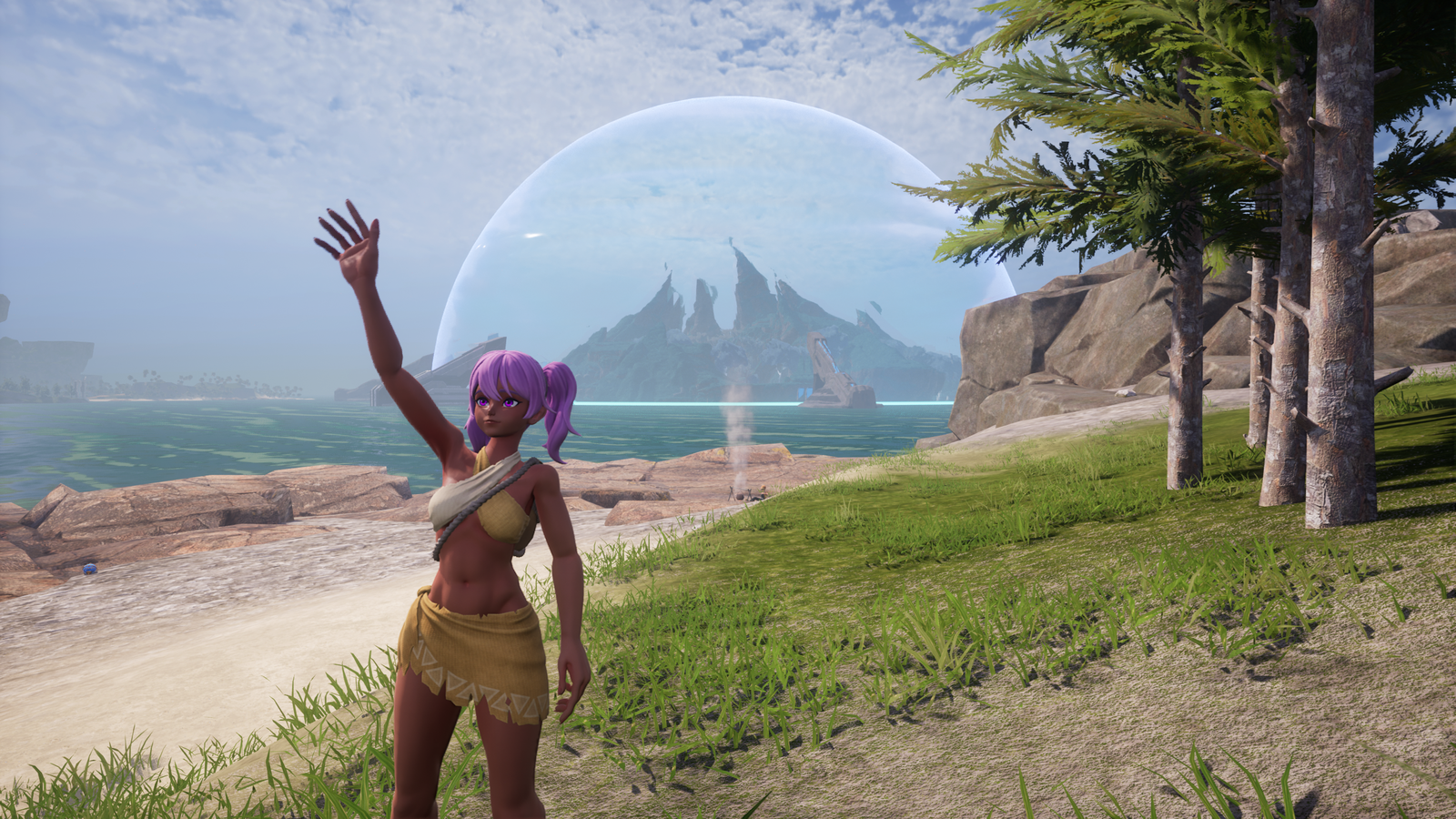
Palworld is a creature-collection survival game, and one of the games that's genuinely better on a dedicated server than a host-migrating co-op session. Your Palworld server plan is fast to set up; most owners spend their time tuning gameplay multipliers rather than wrestling with configuration. This guide gets you connected and walks you through the basics of customizing your server. See the Palworld guide index for more content.
First Boot
The initial installation of the game server will download all of the necessary files. This first process will take about 10 to 15 minutes, and subsequent boots will launch much more quickly.
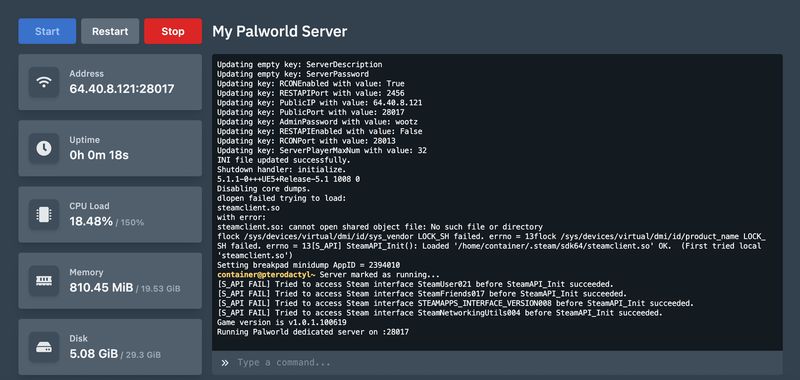
Open your Palworld server in the panel and click Start if it's not already running.
First boot downloads the PalServer files (about 7 GB). Allow 10 to 15 minutes.
Once the world finishes loading in the console, the server is ready to join.
Do not edit settings during first boot
The server generates its default
PalWorldSettings.inionly after the initial launch completes. If you edit too early, your changes may be overwritten. Let it fully boot once, then stop it before editing.
How to Connect
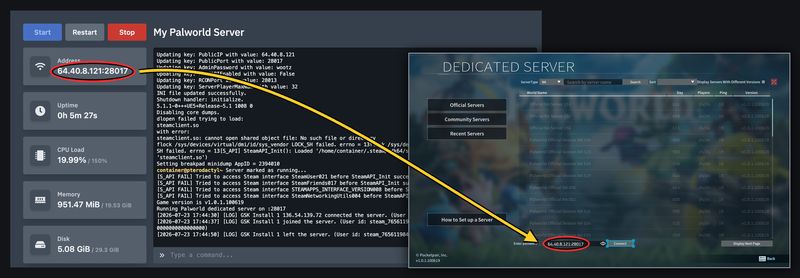
On the main menu, click Join Multiplayer Game and paste the IP and port from the Address at the top left of your panel.
Since the 1.0 release, dedicated servers support crossplay across Steam, Xbox, PS5, and Mac. One important difference: console and Game Pass players cannot join by IP at all; they find the server through the in-game community server browser, so make sure your server has a name set in the Startup tab so that they can find it in the list. Which platforms may join is controlled by the CrossplayPlatforms setting (all platforms by default). Is Palworld Crossplay? covers the platform matrix in full.
If You Can't Connect
Work down this list in order — most people are sorted by the second step.
- Connect by IP and port instead of the browser. The in-game dedicated-server list is slow and unreliable; a perfectly healthy server often just doesn't appear, and it can take 15+ minutes to refresh. Paste the Address from your panel directly rather than waiting for the listing.
- Give the server a minute after starting. A freshly started server loads the world before it accepts connections. Joining immediately after clicking Start gives you a timeout. Wait until the console shows the world has finished loading.
- Check the client and server are on the same build. After a game patch, both have to update. A version mismatch will refuse the connection or hide the server. Restart the server so it pulls the new build, and make sure your own game is current.
- Console friends must use the community browser. Xbox, Game Pass and PS5 players cannot enter an IP at all. Give the server a name in the Startup tab, confirm
CrossplayPlatformsstill includes their platform, and have them search that exact name. - Settings not taking effect? Edit the common values in the Startup tab rather than the file, and stop the server before editing
PalWorldSettings.inidirectly — a running server rewrites it on shutdown. The World Settings guide covers the file in detail. - Only you can't connect, but others can? That points at your own network — a local firewall, antivirus, or VPN sitting between you and the server. Try from a different network, such as a phone hotspot, to confirm.
You do not need to port-forward on our panel
Port forwarding, router configuration and inbound firewall rules are things you only deal with when self-hosting on your own machine. Your server's ports are already open and reachable from the internet, so if nobody can connect, it is not a port-forwarding problem — work the list above and open a ticket if you get to the end of it.
| Symptom | Most likely cause |
|---|---|
| Never appears in the community list | Browser listing is slow — connect by IP instead |
| Times out right after you pressed Start | World still loading; wait a minute |
| Fails to join after a game update | Client and server on different builds |
| Xbox or PS5 friend can't find it | They must search the community browser by name |
| Setting changes keep reverting | Edited while the server was running |
| Only you can't connect | Local firewall, antivirus or VPN |
Beginner Configuration
Almost every gameplay element is tunable, XP rates, Pal capture odds, day length, difficulty, lives in a single file. We have made the most common settings easy to edit within the Startup tab in your game panel. Below is a list of these values and what they do.
Startup Settings
| Setting | Default | Notes |
|---|---|---|
| Server Name | Palworld Server by Gameserverkings.com | The name shown in the server browser (max 64 chars) |
| Server Description | (blank) | The description shown in the server browser (max 128 chars) |
| Max Players | 32 | Maximum number of concurrent players (1–32) |
| Server Password | (blank) | If set, players must enter this password to join. Leave blank for an open server |
| Admin Password | (auto-generated) | Required for admin commands via in-game chat, RCON or the REST API, used as the REST API password |
| REST API Port | 8212 | Read-only. For example, you can access it with like this: curl -u "admin:<admin-password>" http://<container-ip>:<rest-api-port>/v1/api/info |
Advanced Configuration
Palworld has over 90 different settings that you can control. These live in the PalWorldSettings.ini file. This file can be manually edited to change other values that are not listed in the Startup tab. For a more in depth explanation of how to edit these settings safely, please see our complete World Settings guide. If you would rather not edit those 90-odd keys by hand, our Palworld server settings generator builds a valid PalWorldSettings.ini from form fields, and can import the file your server generated on first boot so you keep the values that are already set.
New in the 1.0 Release
The headline new server-side option in 1.0 is in-game proximity voice chat. It is off until you switch it on, and three keys in PalWorldSettings.ini control it: bEnableVoiceChat enables it, VoiceChatMaxVolumeDistance sets how far a voice carries before it starts to fade, and VoiceChatZeroVolumeDistance sets the distance at which it drops to silence. None of the three exist in any Early Access build. One catch from Pocketpair's own release notes, worth knowing before you promise it to your group: voice chat is not supported on the WinGDK build, so Microsoft Store and Game Pass PC players will not have it even when everyone else does. Voice chat is the change most owners will actually act on, but 1.0 added smaller keys too, such as MonsterFarmActionSpeedRate for ranch production speed and bEnableBuildingPlayerUIdDisplay, which shows the ID of the player who placed a structure.
Two things are widely filed under "new in 1.0" that need nothing from you:
- PvP is not new. The PvP option set —
bIsPvP,bEnablePlayerToPlayerDamage,bEnableDefenseOtherGuildPlayer,DeathPenalty, the PvP kill-drop options and the PvP map-display options — shipped during Early Access in the v0.7 "Home Sweet Home" update in December 2025, and Pocketpair's server documentation has carried a dedicated PvP page ever since. All 1.0 changed is that main missions can now be progressed in PvP mode. It is still officially a trial feature that Pocketpair does not cover under support, so if you were already running PvP, your existing config carries straight over. - Guild roles are new, but they are not a server-side option. 1.0 added multiple guild roles, per-role permissions, and structures that can be restricted to particular roles. There are no guild-role keys in
PalWorldSettings.iniat all — roles are assigned in-game by the Guild Master, so there is nothing for you to configure on the server.
After this update, or after any major update, compare your file against the fresh DefaultPalWorldSettings.ini next to it; new keys appear there first, and copying your values into a fresh block is the cleanest way to pick them up.
What to Read Next
Palworld Admin Commands to authenticate as admin and enable RCON
Palworld Modding for the current state of Palworld modding
Is Palworld Crossplay? for the full platform matrix and how console players join
Palworld Multiplayer for how friends join, by invite code or by IP, and the fixes when they cannot
Managing your Palworld world and save files for backups, resets, and moving a local co-op world to your dedicated server
Palworld Save Tools for fixing the co-op host's character after a move, and converting Game Pass saves
Palworld best base locations for 1.0 — where to put the base once the server is up, and the caps you can raise
Palworld ore, ingots and refined ingots — the resource ladder everything else is gated behind
Made with 💜 by GameServerKings

Need a Palworld server?
Deploy an instantly-provisioned Palworld server on high-clock hardware — DDoS protected, no contracts, cancel anytime.
From $7.80 /month