Palworld Admin Commands & Moderation Guide
Every Palworld admin command - kick, ban, teleport, broadcast, save - how to authenticate, where to find player UIDs, and why you cannot spawn items.
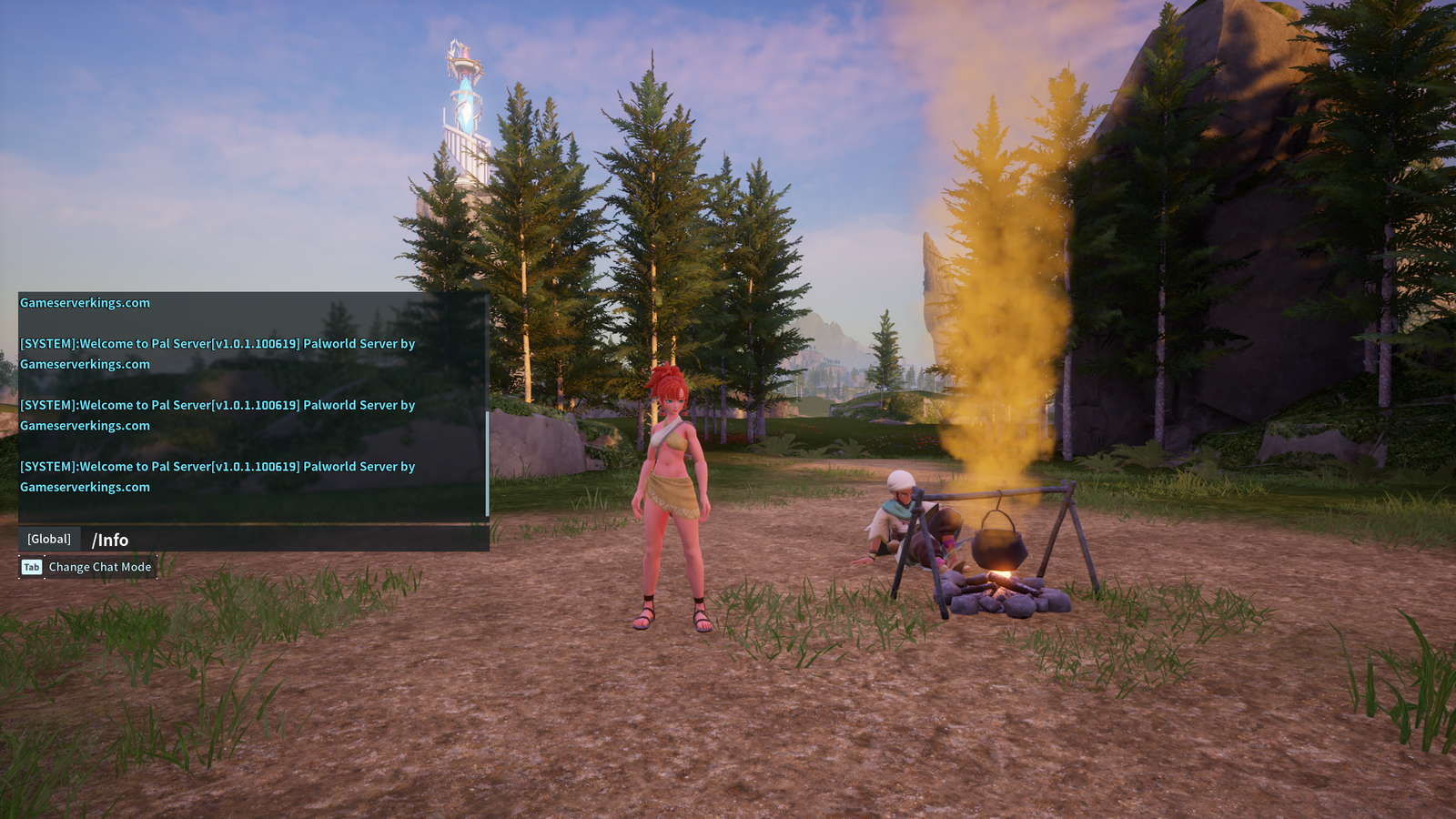
Palworld's dedicated server ships with a set of admin commands for moderating players, saving the world and shutting the server down cleanly. This guide covers every command available in 1.0, how to authenticate as an admin, and the details that trip people up — player IDs, case sensitivity and where bans are actually stored.
Before you start, you need an Admin Password set on your server. On your Palworld hosting plan this is the Admin Password field on the Startup tab — it is set for you automatically but you are free to change it. It accepts letters, numbers, dashes and underscores only, up to 30 characters.
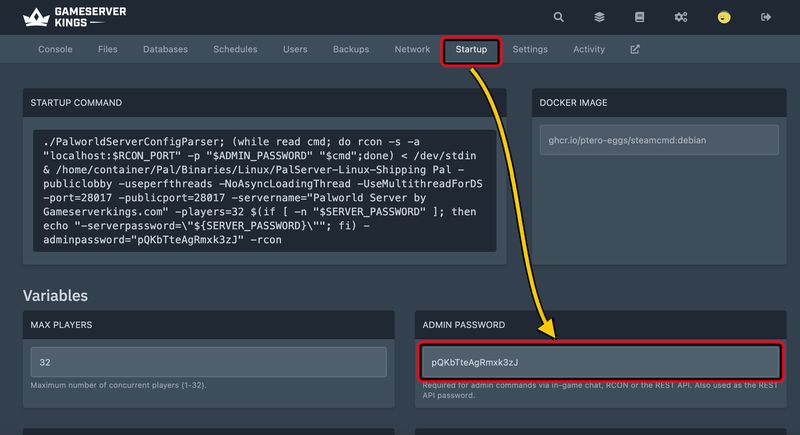
Do not set the admin password in
PalWorldSettings.iniThe panel manages this value and rewrites it into the config on every start, so an edit made in the file will be overwritten.
Becoming an Admin: How to Set the Admin Password
Join your server, press Enter to open the chat box, and authenticate with your admin password:
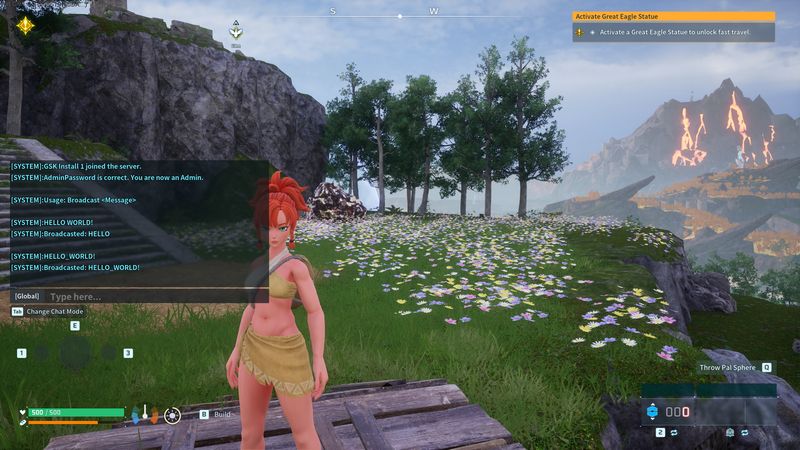
/AdminPassword YOUR_ADMIN_PASSWORDYou will get a confirmation message in chat. That one step is what activates admin commands for your session — every other command on this page requires it first.
This is what people mean by the Palworld admin login: there is no separate admin account or control panel to sign into. The password is the login, and once accepted it unlocks the full set of admin controls listed below.
Admin access lasts for the session only
It ends when you disconnect, so you need to authenticate again each time you rejoin. Console and Game Pass players authenticate the same way — the chat box behaves identically across platforms. Note this action does not work in single player games!
Where to Type Commands on a Dedicated Server
There are two places to run these commands, and both use the same command set:
- In-game chat — press Enter and type the command with a leading slash, e.g.
/ShowPlayers. You must have authenticated with/AdminPasswordfirst. - The server console (RCON) — the same commands typed without the leading slash, e.g.
ShowPlayers. Covered in the RCON section below.
There is no separate developer console
Unlike some games, Palworld has no second command set hidden behind a dev console. On a dedicated server, the "console commands" people search for are these admin chat commands. A single-player world has a World Options menu for rates and difficulty instead — not this command set.
Every Palworld Admin Command: The Full List
The full list of admin commands in Palworld 1.0. Type them in the in-game chat box, exactly as written, after authenticating.
Admin Access
| Command | Parameters | What it does |
|---|---|---|
/AdminPassword |
<Password> |
Authenticates you as an admin for the current session. Required before any other command works |
Server Information
| Command | Parameters | What it does |
|---|---|---|
/Info |
— | Shows the server name and version |
/ShowPlayers |
— | Lists everyone connected, with their name, Player UID and Steam ID |
Moderation
| Command | Parameters | What it does |
|---|---|---|
/KickPlayer |
<PlayerID> |
Disconnects a player. They can rejoin immediately |
/BanPlayer |
<PlayerID> |
Bans a player and disconnects them |
/UnBanPlayer |
<PlayerID> |
Removes a ban so the player can rejoin |
Knowing the commands is the easy half. For deciding when to reach for each one — and what to do when a ban gets appealed — see our game server moderation playbook.
Teleport Commands
| Command | Parameters | What it does |
|---|---|---|
/TeleportToPlayer |
<PlayerID> |
Teleports you to that player |
/TeleportToMe |
<PlayerID> |
Teleports that player to you |
/ToggleSpectate |
— | Switches you between normal play and free-roaming spectator view |
There is no /tp, no coordinate-based teleporting, and no /noclip or /fly — Palworld teleport commands, noclip and fly covers what each of the three above actually does and where it has to be typed.
Communication
| Command | Parameters | What it does |
|---|---|---|
/Broadcast |
<Message> |
Sends a message to everyone on the server |
Broadcast has a long-standing parsing quirk that is still present in 1.0, but it is narrower than it is usually described. Over RCON and in-game chat, the server treats each word after the command as a separate argument and keeps only the first, so /Broadcast HELLO WORLD! reaches players as just HELLO. Joining the words with underscores gets the whole thing through: /Broadcast HELLO_WORLD!.
The REST API is not affected — send the sentence as-is
POST /v1/api/announcetakes the message as amessagestring inside a JSON body rather than as a space-separated argument list, so spaces survive and no underscores are needed. That is the path to build against anyway: Pocketpair has deprecated RCON and states it is "scheduled to stop functioning in an upcoming update", so the chat and RCON truncation is not something to wait out — it is a quirk to work around on an interface that is going away.
Server Lifecycle
| Command | Parameters | What it does |
|---|---|---|
/Save |
— | Writes the world to disk immediately |
/Shutdown |
<Seconds> <Message> |
Announces the message, waits the given number of seconds, then shuts down cleanly |
/DoExit |
— | Stops the server instantly, with no warning and no save |
/DoExitis instant — save first
/DoExitkills the server straight away with no countdown, so anything since the last autosave can be lost. For a clean restart run/Save, then/Shutdown 60 Restarting in 60sto give players warning, rather than reaching for/DoExit.
Admin Permissions: There Is Only One Level
Palworld has no permission tiers, no moderator role and no per-command whitelist. Anyone who knows the admin password gets every command on this page, and anyone who does not gets none. There is no way to grant a player kick rights without also granting shutdown rights.
The practical consequence: treat AdminPassword as a full server credential. If you want graduated moderation, the only route today is to keep the password to yourself and act on reports.
Finding a Player's ID
Every moderation and teleport command needs a player identifier, and /ShowPlayers is where you get it. It returns one line per connected player containing their character name, their Player UID and their Steam ID.

Which one to use depends on the platform:
- Steam players have both. Either works, and the Steam ID is the more reliable of the two.
- Xbox, Game Pass, PS5 and Mac players do not have a Steam ID. Use the Player UID for these players.
Because crossplay is enabled by default on Palworld 1.0 servers, you will have a mix of both. If a kick or ban does not seem to register, check that you used an identifier the player actually has. Is Palworld Crossplay? covers which platforms share a server and how console players find you.
How Bans Work
/BanPlayer disconnects the player and records the ban server-side. Bans persist across restarts and are stored in a plain text file at:
Pal/Saved/SaveGames/banlist.txtThere is no in-game command to view the ban list, so open that file in the panel's File Manager to see who is currently banned. You can also edit it directly with the server stopped, which is the easiest way to unban someone who is no longer connected.
Palworld also checks a global ban list maintained by Pocketpair, set by BanListURL in your config. This is separate from your own bans and covers players banned at the game level.
Kick versus ban
A kick disconnects a player who can rejoin straight away — useful for clearing someone stuck in a broken state. A ban keeps them out until you remove it.
RCON (Legacy)
RCON lets external tools send the same commands remotely, without being in-game. It works today, but Pocketpair has deprecated it and has said it will stop functioning in a future update, so we recommend building anything new against the REST API instead.
On our panel, RCON is already enabled and reserved for internal use. The panel connects to it to shut your server down gracefully and save the world safely on stop. You can use this to type directly into the server console to execute commands. You do not need to use the / before the command here.

Running Palworld outside our panel? Do not expose RCON
RCON has no encryption and a single shared password. If you are self-hosting, bind it to
127.0.0.1, tunnel over SSH, or firewall the port to trusted addresses. An open RCON port with a weak password is a full server takeover.
Spawn Items and Cheats — the Honest Answer
Palworld's vanilla admin commands cannot spawn items or Pals. The built-in set is the server-management list above — kick, ban, broadcast, save, shutdown, teleport. There is no /give, no /spawn and no cheat menu baked into the dedicated server.
Palworld item IDs and why there is no spawn command covers where item and Pal IDs actually live, and what to change instead to get the same result for everyone on the server at once.
Admin Commands in Single Player and Co-op
A world you host from the game client — single player, or co-op through an invite code — has no admin password, no /AdminPassword command to accept one, and therefore none of the commands on this page. That applies to the host as much as to the friends who joined.
Palworld single player: why there are no admin commands explains the structural reason, and covers World Options, mods and moving an existing solo world onto a server.
Why You Get "This Server Does Not Have an Admin Password Set"
Your password was not rejected — the server has nothing to compare it against. The usual causes are a client-hosted world rather than a dedicated server, a password set but not followed by a restart, or a value written to a file the server does not read.
Palworld admin password: setting it and fixing it works through all five causes in the order they actually happen.
Can I Make Someone Else an Admin on My Palworld Server?
No. There is no command to make another player an admin, no moderator role, and no way to grant one command without granting all of them. The password is the entire permission system, and anyone you hand it to can also run /Shutdown.
What you can delegate instead is panel access — How to Add Sub-Users to Your Panel covers handing someone start, stop and restart without giving out the password. If it has already spread further than you meant, Palworld admin password: setting it and fixing it covers rotating it.
Related Palworld Guides
- Setting Up Your Palworld Dedicated Server — full setup guide, the place to start.
- Palworld Multiplayer: How to Play With Friends — co-op invite codes versus a dedicated server, and join fixes.
- Palworld Dedicated Server World Settings Explained — every
PalWorldSettings.inioption, includingAdminPasswordandBanListURL. - How to Install Palworld Server & Client Mods — the route to spawning, admin GUIs and quality-of-life tools.
- Is Palworld Crossplay? — which platforms share a server, and how console players join.
FAQ
How do I become admin in Palworld?
On our panel, set the Admin Password field on your server's Startup tab — it is filled in automatically, but you can change it — then restart. Join the server, press Enter to open chat, and type /AdminPassword YOUR_ADMIN_PASSWORD. Do not set it in PalWorldSettings.ini; the panel rewrites that value on every start.
How do I activate and use admin commands?
Activate them once per session by typing /AdminPassword YOUR_ADMIN_PASSWORD in the chat box. Once authenticated, press Enter to open chat and type any command with a leading slash — /ShowPlayers, /Broadcast Hello, /KickPlayer <PlayerID> or /Save. The same commands work from the server console without the slash.
How do I make someone else an admin on my Palworld server?
Give them the admin password. Palworld has no command that makes another player an admin and no moderator role — anyone who knows the password and activates it with /AdminPassword gets the full command set, including /Shutdown. If you want to delegate without handing over that much, give them panel access instead: How to Add Sub-Users to Your Panel.
Does Palworld have console or cheat commands to spawn items?
No. The built-in admin commands are server-management only — there is no official command to spawn items or Pals. Spawning gear or Pals requires How to Install Palworld Server & Client Mods, or the world and dev options in single player. Palworld item IDs and why there is no spawn command covers the alternatives in full.
How do I kick or ban a player?
Run /ShowPlayers to get the player's identifier, then /KickPlayer <PlayerID> to kick or /BanPlayer <PlayerID> to ban. /UnBanPlayer <PlayerID> reverses a ban. Use the Steam ID for Steam players and the Player UID for Xbox, Game Pass, PS5 and Mac players.
Can I use admin commands in single player?
No — this command set is for dedicated servers only. A single-player or co-op world has its own World Options menu for rates and difficulty, but not the /AdminPassword chat commands. See Palworld single player: why there are no admin commands.
What to Read Next
- Palworld single player: why there are no admin commands — the question behind half the searches that land here
- Palworld admin password: setting it and fixing it — the launch parameter every command on this page depends on
- Palworld teleport commands, noclip and fly — the three movement commands, and where each has to be typed
- Palworld item IDs and why there is no spawn command — what to use instead of the give command Palworld does not have
Made with 💜 by GameServerKings

Need a Palworld server?
Deploy an instantly-provisioned Palworld server on high-clock hardware — DDoS protected, no contracts, cancel anytime.
From $7.80 /month