How to Install Datapacks and Resource Packs on a Minecraft Server
Datapacks are vanilla, server-side and need no mod loader. Install and update them, fix the pack.mcmeta version trap, and set a server resource pack.
Datapacks are the most misunderstood way to change a Minecraft server. They are vanilla Minecraft, they are server-side only, and they need no mod loader — yet they get confused with plugins and mods constantly, and that confusion is why people install them into the wrong folder and then conclude they are broken. This guide covers the three-way distinction, installing and managing datapacks on your hosted Minecraft server, the pack.mcmeta version trap that breaks packs across updates, and the separate business of pushing a resource pack to your players from server.properties.
Everything below was checked against Java Edition 26.2, the current release at the time of writing. If you have not set the server up yet, start with Getting started with your Minecraft server.
Datapack, Plugin or Mod?
These three do genuinely different jobs, and picking the wrong one is the root of most "it didn't work" tickets.
| Datapack | Plugin | Mod | |
|---|---|---|---|
| Needs a special server jar | No — works on vanilla | Yes: Paper, Spigot, Purpur | Yes: Fabric, Forge, NeoForge |
| Players need to install anything | No | No | Yes — same loader and mods |
| Folder | <world>/datapacks/ |
plugins/ |
mods/ |
| File type | Folder or .zip |
.jar |
.jar |
| What it can change | Recipes, loot tables, advancements, functions, tags, predicates, world generation | Server behaviour, commands, permissions, protection, economy | The game itself: new blocks, mobs, dimensions, machines |
| Written in | JSON and .mcfunction files |
Java | Java |
A datapack rewrites data the vanilla game already reads. A crafting recipe for a normally uncraftable item, a custom loot table, a one-command mechanic, a custom world generator — all datapacks, and none of them need a different server jar. Datapacks also work on Paper and Purpur, because those are still Minecraft servers underneath — see Minecraft Server Software Compared if you are not sure which jar you are running.
A plugin is server-side code. It can do things no datapack can — land claims, a chat bridge, ranks — but it needs Bukkit-family software. See How to install plugins for Minecraft Java Edition.
A mod adds genuinely new content to the game, and every player must install the same loader and the same mods before they can connect. See How to install mods for Minecraft Java Edition.
Datapacks are the only one of the three that costs your players nothing
Because a datapack is just data the server already knows how to read, players join with an ordinary unmodified client. That makes datapacks the cheapest way to add content to a public survival server, and the reason so many "vanilla+" servers are datapack servers.
Installing a Datapack
A datapack is either a folder containing a pack.mcmeta file, or a .zip of that folder. Both work — do not unzip a pack that was published as a .zip, and do not zip a folder that was published as a folder.
Download the pack. Check that the archive contains
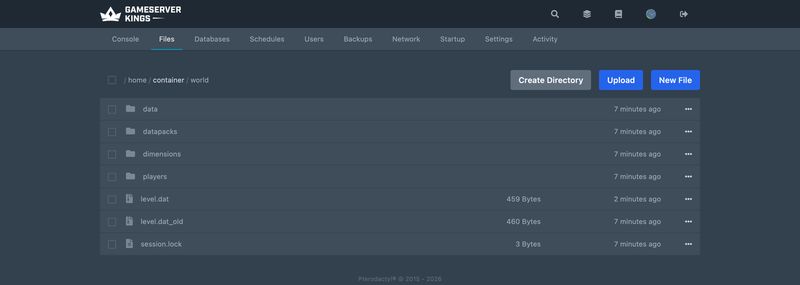
pack.mcmetaat the top level, not inside an extra wrapper folder.In the panel's File Manager, open the world folder. It is named after
level-nameinserver.properties, so on a default install that isworld/.Create a
datapacksfolder inside it if there is not one already, and upload the pack there. The finished path isworld/datapacks/YourPack/pack.mcmetaorworld/datapacks/YourPack.zip.Restart the server.
New packs are picked up and switched on for you. The console says so explicitly:
[ServerMain/INFO]: Found new data pack file/YourPack, loading it automaticallyIf the pack only changes recipes, loot tables, advancements, functions, tags, predicates, item modifiers or structure templates, you can skip the restart and run /reload from the panel Console instead. Anything that touches world generation, dimensions, enchantments, damage types or the other dynamic registries needs a genuine restart — /reload will appear to succeed and change nothing.
The
datapacksfolder is inside the world, not next to the jarThis is the single most common mistake.
plugins/andmods/sit in the server root;datapacks/sits inside the world folder. A pack dropped in the server root is never seen, and the server says nothing about it. If you also run multiple worlds, each world has its owndatapacksfolder and its own enabled list.
Managing Datapacks From the Console
The /datapack command controls what is loaded. Run it from the panel's Console without a slash, or in-game as an operator. On 26.2 the server's own help output is:
/datapack enable <name> [after|before|last|first]
/datapack disable <name>
/datapack list [available|enabled]
/datapack create <id> <description>list, enable and disable need operator level 2; create needs level 4. See Minecraft Op Permission Levels if those numbers are new to you.
Packs are named by where they came from, which is why you type file/YourPack rather than the folder name alone:
> datapack list
There are 3 data pack(s) enabled: [vanilla (built-in)], [file/YourPack (world)], [file/AnotherPack (world)]
There are no more data packs available"Enabled" and "available" are two different lists. A pack sitting in the folder but switched off shows under available; /datapack enable "file/YourPack" moves it across. Quote the name if it contains anything unusual.
Order matters when two packs define the same file: the pack loaded last wins, and that is what first, last, before and after are for. Tag files are the exception — they merge with earlier packs unless the tag sets "replace": true. The order itself is stored in the world's level.dat, not in a config file, which is why it survives restarts and why moving a world to another server carries its datapack list with it.
Two server.properties keys decide what happens on a brand new world only:
initial-enabled-packs=vanilla
initial-disabled-packs=They are comma-separated lists applied at world creation. They have no effect on a world that already exists — use /datapack for that. Both keys are covered alongside every other key in the server.properties reference.
The pack.mcmeta Version Trap
Every pack carries a pack.mcmeta that declares which versions of the game it was built for. This is where packs quietly stop working, and the rules changed recently enough that most guides on the web are describing a format Minecraft no longer uses.
The field names changed in 1.21.9
Up to and including 1.21.8, a pack declared a single pack_format integer, optionally widened by a supported_formats range. From 1.21.9 onward:
min_formatandmax_formatare the fields that matter, and they are required.supported_formatswas removed.pack_formatbecame optional, and is only still needed if the pack also wants to support data pack format below 82 (resource pack format below 65).min_formatmay be a single integer or a[major, minor]pair.max_formatgiven as a single integer means "any minor version of that major".
This is what Mojang's own bundled datapacks look like inside the 26.2 server jar — note that there is no pack_format field at all:
{
  "pack": {
    "description": "My server's custom recipes",
    "min_format": [107, 1],
    "max_format": 107
  }
}Which numbers to use
Data packs and resource packs use separate numbering, so do not copy one into the other. The server tells you both if you run version in the console:
> version
Server version info:
id = 26.2
name = 26.2
protocol = 776 (0x308)
pack_resource = 88.0
pack_data = 107.1
stable = yes| Java Edition | Data pack format | Resource pack format |
|---|---|---|
| 1.21 – 1.21.1 | 48 | 34 |
| 1.21.2 – 1.21.3 | 57 | 42 |
| 1.21.4 | 61 | 46 |
| 1.21.5 | 71 | 55 |
| 1.21.6 | 80 | 63 |
| 1.21.7 – 1.21.8 | 81 | 64 |
| 1.21.9 – 1.21.10 | 88.0 | 69.0 |
| 1.21.11 | 94.1 | 75.0 |
| 26.1 – 26.1.2 | 101.1 | 84.0 |
| 26.2 | 107.1 | 88.0 |
Minor versions appeared with 1.21.9: the minor number increments for non-breaking changes, the major for breaking ones. The practical consequence is that the number moves almost every snapshot, so always read it off version rather than a table you found somewhere.
What actually happens when the version is wrong
This is where the common advice is wrong, and it matters because it changes how you debug. On a dedicated server a version mismatch is not fatal:
- A pack that declares an old range still loads and runs. The server prints one warning and carries on. The "are you sure you want to load this pack?" confirmation that older guides describe is a client-side dialog from the world-creation screen; a dedicated server has no such dialog and does not ask.
- The warnings look like this, and each is preceded by
Error reading pack metadata, attempting fallback type:
Pack declares support for format 48, but game versions supporting formats 17 to 81 require a supported_formats field. Add "supported_formats": [48, 81] or require a version greater or equal to 82.0.
Pack declares support for version newer than 81, but is missing mandatory fields min_format and max_format
Pack could not be parsed, missing format version information- Only genuinely malformed JSON gets the pack rejected. Then you see
Failed to read pack file/YourPack metadataand the pack never appears in/datapack listat all.
So the version number is a label, not a gate. What actually breaks a pack across an update is its contents no longer matching the schema — and that fails in two very different ways.
Loud failures are per-file and name the file, which makes them easy to trace (see Reading Minecraft Server Logs and Crash Reports for reading console output generally):
[Worker-Main-4/ERROR]: Couldn't parse data file 'mypack:cobble_to_emerald' from 'mypack:recipe/cobble_to_emerald.json': DataResult.Error['... No key id in MapLike[{"item":"minecraft:emerald","count":1}]']That one is a real example: recipe results changed from "item" to "id", so a pack written for 1.20 throws on 26.2 while the rest of the pack keeps working.
Silent failures are the dangerous ones. Minecraft 1.21 renamed almost every data folder from plural to singular. A pack still using the old names loads with a perfectly clean console, reports as enabled, and does absolutely nothing:
| Old folder (pre-1.21) | Current folder |
|---|---|
advancements |
advancement |
functions |
function |
loot_tables |
loot_table |
predicates |
predicate |
recipes |
recipe |
item_modifiers |
item_modifier |
structures |
structure |
tags/functions |
tags/function |
tags/items, tags/blocks, tags/fluids, tags/entity_types, tags/game_events |
tags/item, tags/block, tags/fluid, tags/entity_type, tags/game_event |
A pack that lists as enabled but does nothing is almost always a folder-name problem
If
/datapack listshows your pack, the console is clean, and/function yournamespace:somethinganswersUnknown function, the pack's folders are using pre-1.21 names. Rename them to the singular forms above and/reload. No error is ever printed for this, because as far as the server is concerned the pack simply contains no files it recognises.
Updating a pack when you update the server
Take a backup first — see Updating Your Minecraft Server for the version-upgrade sequence in full — then check the author's page for a build matching your Minecraft version. If none exists, the honest options are to stay on your current version until one does, or to open the pack and fix the schema yourself. Do not simply edit the version number in pack.mcmeta and hope — as shown above, that number changes nothing about whether the contents load.
If a pack breaks the world badly enough that the server will not start, the vanilla server accepts a --safeMode flag that loads only the built-in pack, which is enough to get in and disable the offender.
Where to Get Datapacks
- Modrinth (modrinth.com/datapacks) — has a first-class datapack category with version filters, so you can filter to your exact Minecraft version before downloading. This is the best starting point.
- Vanilla Tweaks (vanillatweaks.net) — a picker that builds one combined pack from small quality-of-life modules. Popular for survival servers because it stays close to vanilla.
- Datapack authors' own repositories — larger projects often publish on GitHub with release builds per Minecraft version.
Whatever the source, check the supported version before the download count: a pack with a hundred thousand downloads that stopped updating at 1.20 is worth less to you than an obscure one built for 26.2.
Server Resource Packs
A resource pack is the other half of the picture and works in the opposite direction: instead of changing server data, it changes what the client draws — textures, models, sounds, fonts, the language file. Your server does not apply a resource pack; it points players at one and their clients download it.
This is configured entirely in server.properties — the five keys below, all documented alongside the rest in the server.properties reference:
resource-pack=https://cdn.example.com/packs/mypack-v3.zip
resource-pack-sha1=9f2c4d1a7b3e6058c1d4e0f7a2b58c93de614072
resource-pack-id=
resource-pack-prompt=
require-resource-pack=false| Key | Default | What it does |
|---|---|---|
resource-pack |
blank | Direct HTTP(S) URL to a ZIP archive. Blank means no pack is offered |
resource-pack-sha1 |
blank | SHA-1 digest of the ZIP, lowercase hex. Optional but strongly recommended |
resource-pack-id |
blank | Optional UUID identifying the pack to clients |
resource-pack-prompt |
blank | Custom message shown on the download prompt, in chat-component JSON |
require-resource-pack |
false |
true disconnects any player who declines |
Hosting the file
The URL must serve the raw .zip over HTTP or HTTPS, with no login page and no interstitial. Cloud storage "share" links usually serve an HTML preview page rather than the file, which is the most common reason a pack fails to download for everybody at once. Object storage with a direct public URL, or a plain static host, both work.
The pack must not be larger than 250 MiB. Beyond that, keep it small for its own sake — every player downloads it on join, and a 200 MiB pack is a wall in front of your server for anyone on a slow connection.
Getting the SHA-1 right
The hash lets clients verify and cache the file. Get it from any standard tool:
sha1sum mypack-v3.zipPaste the 40-character lowercase result into resource-pack-sha1. If it is missing or malformed the server tells you on boot:
[ServerMain/WARN]: Invalid sha1 for resource-pack-sha1
[ServerMain/WARN]: resource-pack-id missing, using default of e7633665-bb28-35d7-bfc9-0752cd89d65bThe second line is informational — the server derives a stable UUID from the URL when resource-pack-id is blank.
Change the filename every time you update the pack
Clients cache by hash. If you overwrite
mypack.zipin place and update only the hash, some clients keep serving themselves the old file from cache. Publishmypack-v4.zipas a new URL, update bothresource-packandresource-pack-sha1, and restart. Versioning the filename is the whole fix.
What players see
On joining, an optional pack shows a prompt reading "This server recommends the use of a custom resource pack." Anything you put in resource-pack-prompt is appended below it under "Message from server:". The value is a text component, so it takes colour and multiple lines:
resource-pack-prompt={"text":"Our pack adds custom item textures. Recommended.","color":"gold"}With require-resource-pack=true there is no opting out — declining disconnects the player. Use it for a pack the server genuinely depends on, and think twice for a cosmetic one, because it turns a first-join annoyance into a first-join bounce.
If the download fails, the client shows "Server resource pack couldn't be applied" and joins anyway with default textures. That failure is logged by the client, not by your server, so a working-for-you pack that fails for a player will leave nothing in your console — check the URL from a browser in a private window as a first test.
There is no vanilla command to change the resource pack while running
server.propertiesis read at startup and the server rewrites the file itself, so edit it with the server stopped, then start. A/serverpackcommand does exist but it is a development command locked behind a JVM debug flag; on a normal server it answers "Unknown or incomplete command. See below for error". Plugins can push packs at runtime if you need that.
Common Issues
- Datapack does nothing and the console is clean: The pack's folders use pre-1.21 plural names. Rename
functions→function,recipes→recipe, and so on, then/reload. /datapack listdoes not show the pack at all: Either it is not in<world>/datapacks/, or itspack.mcmetais not valid JSON — look forFailed to read pack ... metadatain the console. A missing trailing brace or a smart quote from a word processor is the usual culprit.- Pack is in the list but
/functionsays "Unknown function": Same folder-name problem as above. Function files also need the.mcfunctionextension. Couldn't parse data file ...on boot: One file in the pack uses an outdated schema. The message names the exact file. Fix or delete that file; the rest of the pack still works.- Changes revert after a restart: You edited files inside the pack while the server was running and never reloaded, so the server saved its in-memory state over your edits. Stop the server, edit, then start.
- Resource pack never prompts anyone: The URL is not serving the raw ZIP. Open it in a private browser window — if you get a preview page rather than a download, that is the problem.
- Resource pack prompts but always fails: A wrong
resource-pack-sha1, or the file changed since you generated the hash. Regenerate it against the exact file the URL serves. - Bedrock players do not get the pack: Java resource packs are Java-only. Bedrock uses its own pack system, served from the world folder rather than from a URL — there is no
resource-packkey on that side, onlytexturepack-required. See Minecraft Bedrock server.properties: The Complete Key Reference, Setting up your Bedrock Minecraft server and Setting up CrossPlay for Minecraft.
What to Read Next
- Minecraft server.properties: The Complete Reference for every key mentioned here, in context
- Minecraft Server Commands for
/datapack,/functionand/reloadin the wider command set - How to install plugins for Minecraft Java Edition if you actually need server-side code
- How to install mods for Minecraft Java Edition if you actually need new blocks and mobs
- Minecraft Server List Appearance for the MOTD, icon and player count — the other half of
server.propertiesyour players actually see - Minecraft World Management for what else lives inside the world folder
- Managing your Minecraft server for backing the world up before you touch any of this
- Blue Axolotl in Minecraft: The Real Odds — Bedrock's mutation chance lives in a behaviour pack, where Java's does not
Made with 💜 by GameServerKings

Need a Minecraft server?
Deploy an instantly-provisioned Minecraft server on high-clock hardware — DDoS protected, no contracts, cancel anytime.
From $4.80 /month