Converting a Singleplayer World to a Minecraft Server: What Changes
What changes when a singleplayer Minecraft world becomes a server world: game mode, difficulty, hardcore, spawn protection, cheats, inventory and mods.
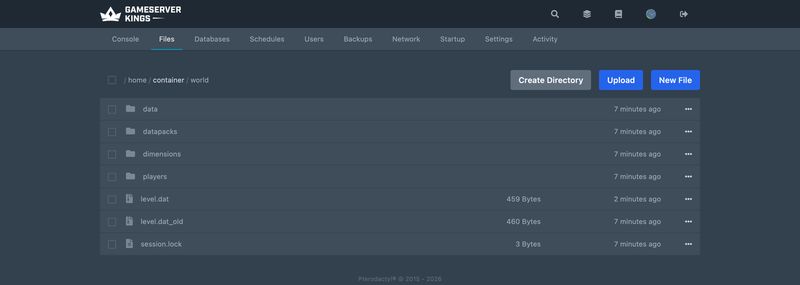
Copying a singleplayer world onto a server is the easy half. It is an ordinary Minecraft save and a Minecraft server reads exactly the same format, so the file move is a file move — Minecraft World Management has that walkthrough, including where saves lives on each operating system and how to point level-name at the folder once it is uploaded.
The half that surprises people is what happens next. A dozen things that were properties of your world become properties of the server, read fresh from server.properties at every start, and a few that worked locally stop working entirely. This guide covers those differences, in the order you are likely to trip over them on your Minecraft server.
Java Edition only
A Bedrock world cannot become a Java server world. Bedrock stores its saves in a modified LevelDB database under
com.mojang; Java uses the region-file format under.minecraft/saves. They are not convertible in either direction. See Setting up your Bedrock Minecraft server, or Setting up CrossPlay for Minecraft if what you want is Bedrock players joining a Java server.
Everybody Arrives in the Server's Game Mode
The server's default game mode comes from gamemode in server.properties, and it defaults to survival. Your world does carry a GameType value in level.dat, but it is documented as the default for the singleplayer player — and singleplayer does not even use it to record what mode you are currently in.
So a creative world uploaded to a default server drops everyone into survival, in a world built with no thought given to mob spawns.
force-gamemode decides what happens on later joins. Left at its default of false, players come back in whatever mode they left in. Set to true, everyone is put into the default game mode every time they join — which is what you want for a creative build server, and what you very much do not want if you hand out /gamemode selectively.
Set both before first boot rather than fixing it afterwards with /gamemode for every player.
Difficulty Travels, but the Server Has Its Own Opinion
Difficulty has been saved per-world since 1.8, and from 26.1 it lives in level.dat inside a difficulty_settings compound holding three things: the difficulty itself, a hardcore flag, and a locked flag that prevents it being changed at all.
server.properties also has a difficulty key, and its default is easy — not normal. Set it explicitly to what you actually want, then confirm in-game with /difficulty after first boot rather than assuming.
A hardcore world stays hardcore, and behaves differently on a server
hardcoreinserver.propertiesis documented as enabling hardcore mode on created worlds. Setting it tofalsewill not turn hardcore off on a world that already carries the flag. A hardcore world also has its difficulty pinned to hard, and the wiki is blunt that the only way to change that is an NBT editor onlevel.dat.The death behaviour is worth understanding before you invite anyone in. A hardcore world offers no ordinary respawn: the death screen gives two options, spectate the world or quit to the title screen, and choosing to carry on puts that player into Spectator mode at the world spawn. That is the same on a server as it was on your own machine — the difference is that it now applies to everyone who joins, and an operator has to
/gamemodethem back if you want them playing again.
Cheats Become Operator Levels
allowCommands in level.dat is the "Allow Cheats" toggle from world creation, and it is a singleplayer concept. A server has no such switch. Command access is decided by operator status, stored in ops.json in the server root — a server file, not a world file, so it does not arrive with your upload.
Make yourself an op from the panel Console:
> op YourMinecraftUsernameThat grants level 4, which is everything. If you are bringing friends in and would rather not hand all of them the ability to /stop the server, Minecraft Op Permission Levels explains what each of the five levels actually unlocks, and Minecraft Server Commands is the command reference.
Spawn Protection Appears From Nowhere
spawn-protection has no singleplayer equivalent and it is on by default at 16. That number is a radius expressed as a square of side 2x+1, so the default protects a 33×33 block area around spawn in which only operators can place or break blocks.
If your singleplayer base is at or near spawn — and on a world you started alone, it very likely is — you will find yourself unable to touch your own build. Set spawn-protection=0 to switch it off, or keep it as a griefing control and move on. It also disables itself automatically if the server has no ops at all, which is why it sometimes appears to activate the moment you op yourself.
Your Render Distance Is Now Somebody Else's Decision
In singleplayer, render distance is a slider in your video settings and your own PC pays for it. On a server, view-distance controls how much world data the server sends each client, in chunks of radius, and it defaults to 10. A world you explored at render distance 32 will not look like that any more, no matter what your client is set to.
simulation-distance, also 10 by default, is the one that changes behaviour rather than looks: entities outside that radius are not ticked by the server at all. Farms and mob grinders that ran happily in singleplayer while you stood nearby may simply stop when they fall outside it. This is the single most common "my world broke on the server" complaint that is not actually a bug.
There is a related trap in allow-flight, which defaults to false: in Survival, a player using a flight mod who stays airborne for at least five seconds gets kicked. It has no effect in Creative mode.
Will You Keep Your Inventory?
Your base, chests, farms and terrain are world data. They come across with the region files, always.
Your inventory and position are player data, and that is keyed by UUID — which is where it gets interesting, because this changed recently.
Before 26.1, the singleplayer player's state lived in a Player compound inside level.dat. In 26.1 that compound was replaced by a singleplayer_uuid tag which references a player data file instead, so the singleplayer player is now stored in players/data/<uuid>.dat — the same location and format the server reads for everyone else. On a current version, joining your own uploaded world with the same Microsoft account should find your existing player file waiting.
Two things break the match:
- Offline mode. Offline-mode UUIDs are not account UUIDs. They are version 3 UUIDs generated from the MD5 hash of
OfflinePlayer:<username>, so a world played on a legitimate account and then joined on a server runningonline-mode=falseproduces a different UUID and a brand new, empty player. Keeponline-mode=trueunless you have a specific reason not to. - Older worlds. On a world last saved before 26.1, your state is inside
level.datrather than in a per-player file, so the server has nothing to load and you start empty. Everything you built is still there. Your hotbar is not.
Your op status is not affected by a username change, incidentally, because ops.json keys on UUID too — with the same offline-mode caveat.
Resource Packs and Data Packs Go Different Ways
A world resource pack will not apply. A bundled resources.zip — at resourcepacks/resources.zip inside the world folder since 26.1, and loose in the world folder before that — is applied by the client when it opens the world locally, and the wiki notes it is not even distributed to other players joining over LAN. A dedicated server neither loads it nor sends it on. A server has to ask the client to download one instead, through resource-pack and its companions resource-pack-sha1, resource-pack-prompt and require-resource-pack.
Data packs do come across. They are stored inside the world, in datapacks/, with the enabled and disabled lists recorded in level.dat. Custom advancements, recipes, loot tables and functions all keep working without you doing anything.
Game rules come across too. Since 26.1 they live in data/minecraft/game_rules.dat inside the save, so everything you set with /gamerule in singleplayer is still set. Worth knowing that several settings older guides tell you to put in server.properties are now game rules and no longer exist as properties — Getting started with your Minecraft server lists which, and Minecraft server.properties: The Complete Reference documents everything that is still a real key.
Things That Simply Do Not Come With the World
- "Open to LAN" settings. The Game Mode and Allow Commands options in that dialog apply to other players for that session only — the wiki notes players do not retain their cheat permissions when they rejoin — and the port is randomised each time unless you specify one. None of it is stored in the save, so none of it carries.
- Your client options. Keybinds, video settings and your multiplayer server list live in
options.txtandservers.datinside.minecraft, not in the world folder. - Screenshots. Also in
.minecraft. ops.json,whitelist.jsonand the ban lists. Server files, not world files. On a fresh server they start empty.
Decide about the whitelist before you hand out the address
white-listcurrently defaults tofalse, but that default is changing totruein Java Edition 26.3. If you set the server up on one version and upgrade later, "nobody can join any more" has a very boring explanation. Minecraft server.properties: The Complete Reference covers the change.
Match the Version Before You Load It
Set the server to the version your world was last played on. Minecraft renumbered its releases in 2026 and moved its Java requirement at the same time, so version and runtime now travel together:
| Minecraft version | Minimum Java |
|---|---|
| 26.1 and later | Java 25 |
| 1.20.5 – 1.21.11 | Java 21 |
| 1.18 – 1.20.4 | Java 17 |
| 1.17 – 1.17.1 | Java 16 |
| 1.12 – 1.16.5 | Java 8 |
Version changes only go one way
Minecraft records a data version in the save and compares it against the game opening it. Loading an older world on a newer version converts it, and that conversion cannot be undone. Loading a newer world on an older version is worse: the game's own warning is that the world may become corrupted. There is no supported downgrade path, so load the world on the version it came from first, confirm it works, and treat any upgrade as a separate job — Upgrading a Minecraft Server Across Versions covers that properly.
Worlds Made With Mods
A modded singleplayer world is not a vanilla world with extras. Every modded block, item and entity in it is stored under an ID that only exists while that mod is loaded.
- Install the same loader and the same mods, at the same versions, before the first boot. Set the server type to
fabric,forgeorneoforgein the Startup tab — see How to install mods for Minecraft Java Edition, or How to Install a Minecraft Modpack Server if you were playing a pack. - Loading a modded world without its mods destroys their content. Unrecognised blocks and entities have nothing to map to and are dropped. They are not waiting for you when you reinstall the mod later.
- Plugins are not a substitute for mods. Paper, Purpur and Spigot run plugins, and PaperMC's own documentation says Paper will be unable to load features that Fabric or Forge mods added to the game. A modded world belongs on a modded server. How to install plugins explains the split, and Which Minecraft Server Software Should You Run? helps you pick.
- Client-side-only mods need nothing on the server. Shaders, minimaps and inventory tweaks are yours alone.
First Boot Checklist
Once the world is uploaded and level-name points at it:
- The console shows the world loading, not generating a spawn area.
- You spawn in terrain you recognise, at coordinates you remember.
/difficultyreports what you expect, and you are not unexpectedly in a hardcore world.- You are an op —
/gamemode creativeis accepted. - Walk through a Nether portal and an End portal. Both should be yours.
- Check anything automated. Farms outside
simulation-distancewill have stopped. - Take a backup from the Backups tab before anyone else joins. How to create a backup covers it.
Common Issues
- Everyone spawns in survival in my creative world.
gamemodeinserver.properties. The world's own value does not apply on a server. - I cannot break blocks near spawn.
spawn-protection, default 16. Set it to0or op yourself. - I keep dying and coming back as a spectator. The world is hardcore, so choosing to carry on after death puts you in Spectator, and
hardcore=falseinserver.propertieswill not undo it — it only applies to worlds being created. - My world loaded but I have nothing. Player data did not match your UUID: check
online-mode, or see the inventory section above if the world predates 26.1. - My farms stopped working. They are outside
simulation-distance, so nothing in them is being ticked. - My texture pack is gone. A world's bundled resource pack is applied by your own client and is not sent on by a server. Set
resource-packinserver.propertiesinstead. - The world looks like it has shrunk.
view-distance, default 10 chunks, not your client's render-distance slider. - Everything modded vanished. The server booted without the mods. Restore the backup, install the loader and mods, then load the world.
- My friends cannot connect. Not a world problem — see Players Can't Connect to My Server and check the port shown on your panel page.
What to Read Next
- Minecraft World Management for the upload itself, world borders, pre-generation and resets
- Getting started with your Minecraft server for the Startup tab, versions and first boot
- Minecraft server.properties: The Complete Reference for every setting named above
- Minecraft Op Permission Levels for handing out admin without handing out everything
- How to move an existing Minecraft server to GameServerKings if you also have a server elsewhere to bring across
- Managing your Minecraft server for backups, restarts and keeping it fast
Made with 💜 by GameServerKings

Need a Minecraft server?
Deploy an instantly-provisioned Minecraft server on high-clock hardware — DDoS protected, no contracts, cancel anytime.
From $4.80 /month